
WooCommerce Advanced Files Uploader
Empower your customers to personalize their products with our Advanced Files Uploader for WooCommerce.
Advanced Files Uploader Requirements & Installation
This guide covers installing Advanced Files Uploader for WooCommerce and confirming where the global and product-level upload settings are managed.
Requirements
- WordPress 5.0 or newer.
- WooCommerce 6.0 or newer.
- Administrator access to install and activate plugins.
- A WooCommerce product that uses standard product, cart, and checkout behavior.
The plugin declares compatibility with WooCommerce High-Performance Order Storage and WooCommerce cart and checkout blocks.
Install and activate the plugin
- Download the plugin ZIP file from your Carticy account.
- Go to Plugins > Add New Plugin > Upload Plugin.
- Select the ZIP file, then click Install Now.
- Click Activate Plugin after WordPress finishes the installation.
- Confirm WooCommerce Advanced Files Uploader appears as an active plugin.

Find the global settings
Go to WooCommerce > Settings > Products > Advanced Files Uploader. Global settings control display behavior, styling, quantity behavior, filename formatting, and automatic cleanup.
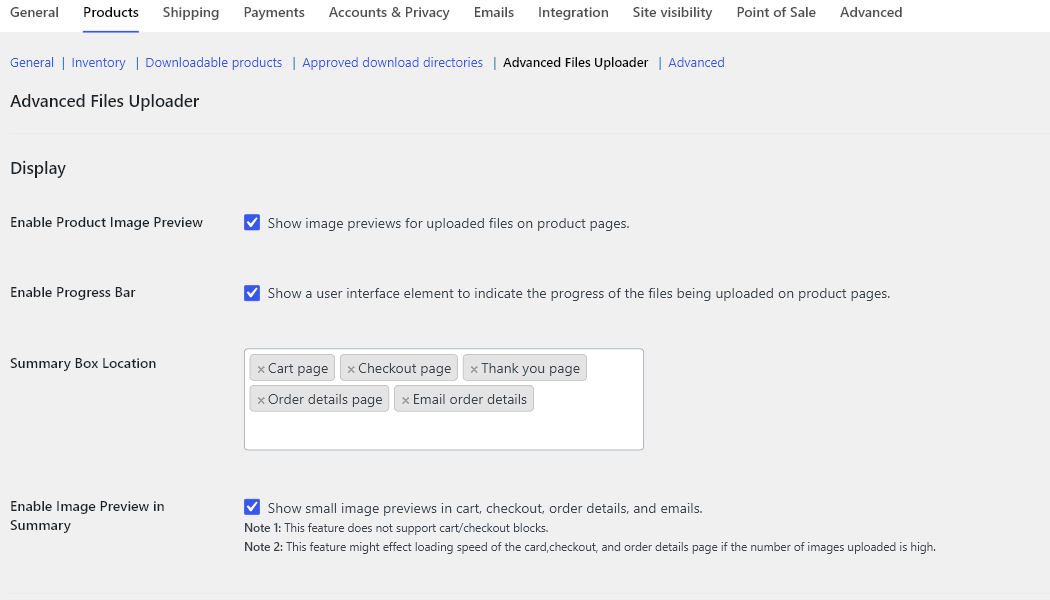
Find product upload settings
Edit a WooCommerce product and open the Advanced uploader tab inside the Product data panel. This is where uploads are enabled for a specific product and where product-specific file types, limits, pricing, cropping, and variation overrides are configured.
Verify the installation
- Open the global settings page and confirm the Advanced Files Uploader tab loads without errors.
- Edit a product and confirm the Advanced uploader product data tab appears.
- Enable uploads on one test product, update the product, and view it on the storefront.
- Confirm the upload field appears on the product page before using it on a live product.
Next steps
Configure the global display settings before enabling uploads across more products: Global Display Settings. Then enable uploads on the first product: Enable Advanced Files Uploader on a Product.