
Deposits & Payment Plans for WooCommerce
The official deposits plugin cannot charge the balance at all: it emails the customer and hopes. This one takes the deposit, then charges the rest to the card they already used, on any gateway that supports WooCommerce Subscriptions.
What the Customer Sees
This page describes every storefront surface the plugin adds, so you know what a buyer is shown before you turn a plan on.
The product page
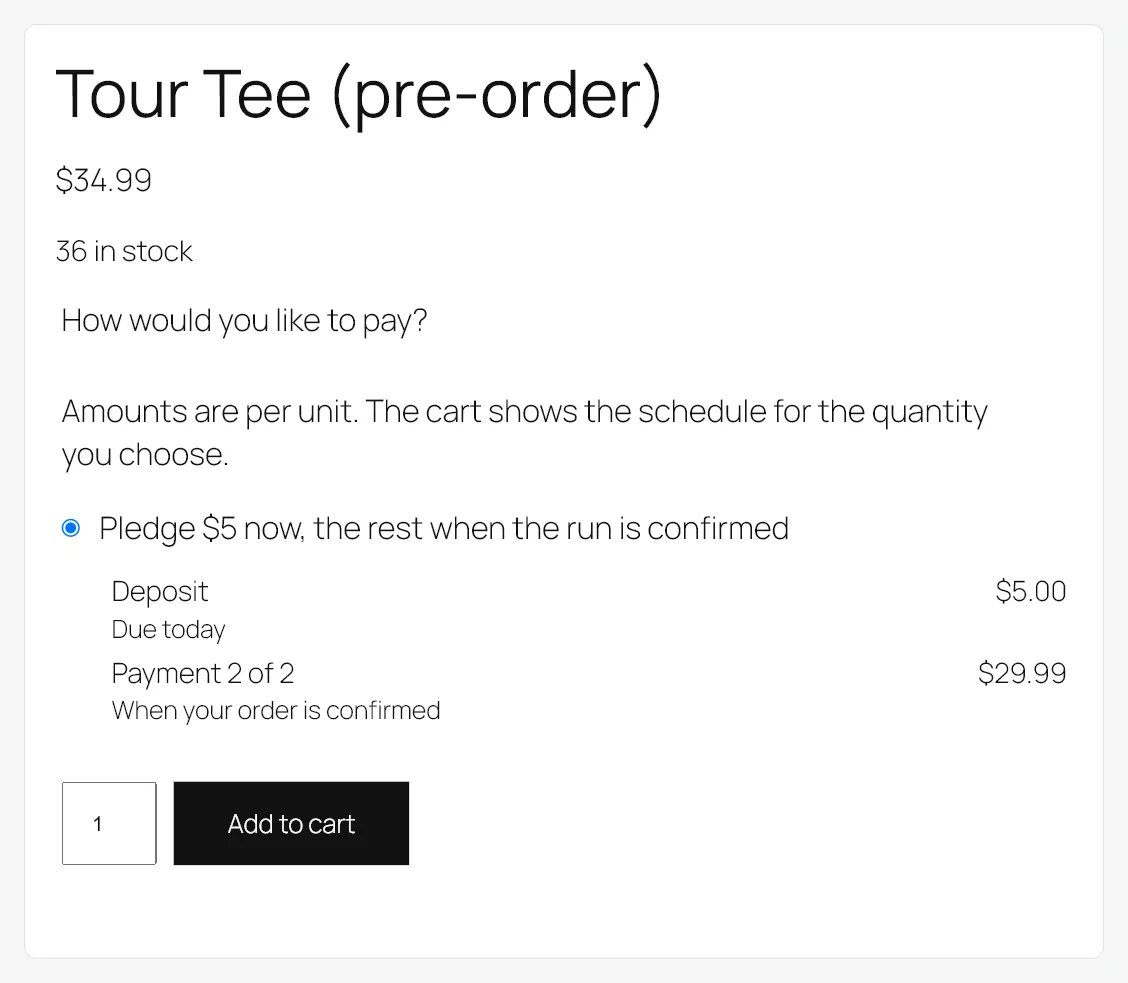
Under the price, the customer picks how to pay. Each option carries its full schedule: what each payment is, and when it falls due.
- A payment due on the day of purchase reads Due today.
- Any other dated payment reads Due, followed by the date in your store’s date format.
- A payment collected when you decide reads When your order is confirmed.
- The deposit is labelled Deposit. The rest read Payment 2 of 3, and so on.
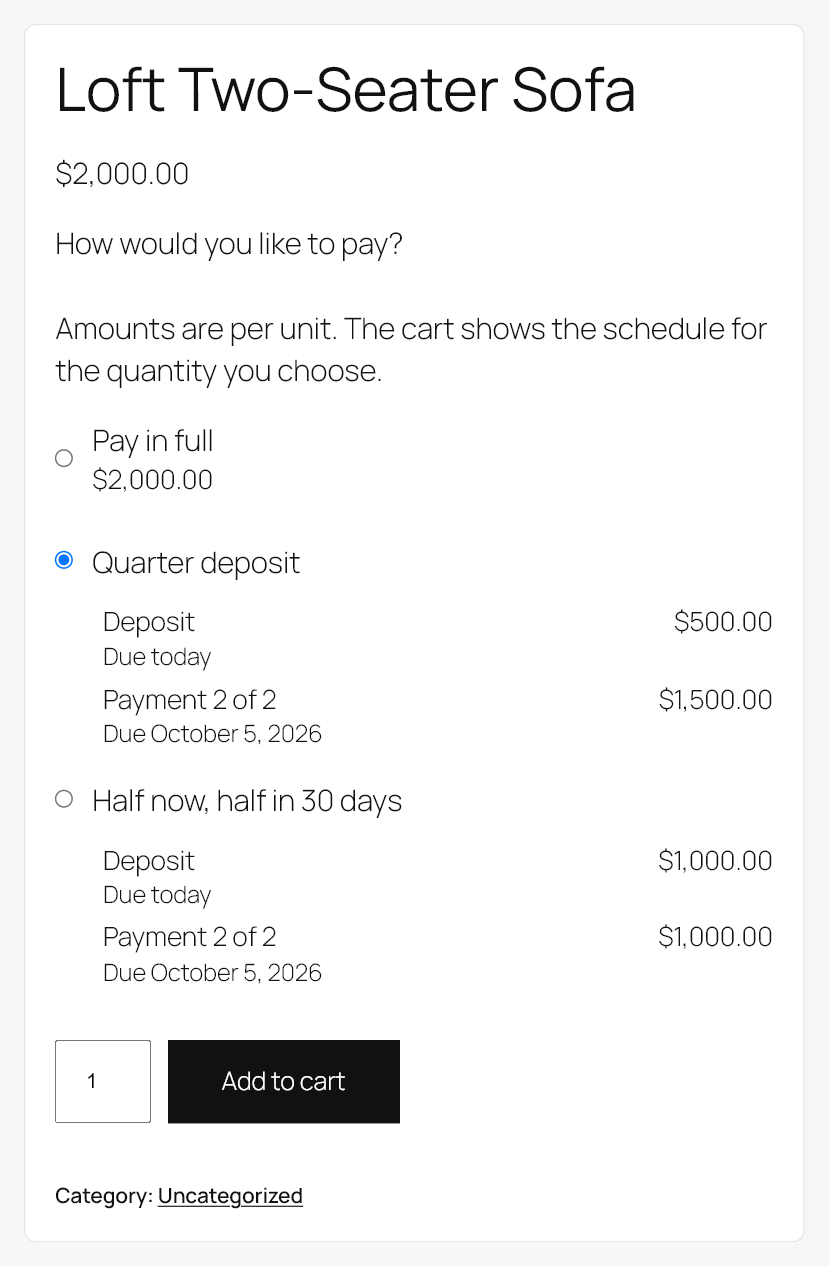
On a variable product the schedule is recalculated as the variation changes, so the figures always belong to the variation on screen. On a product sold by quantity, the schedule is stated per unit so the customer can see what one of them costs on the plan.
A product that offers no way to pay in full shows only its plans, with the default one selected. Adding it from a shop or category page lands it in the cart on that default plan.
The cart
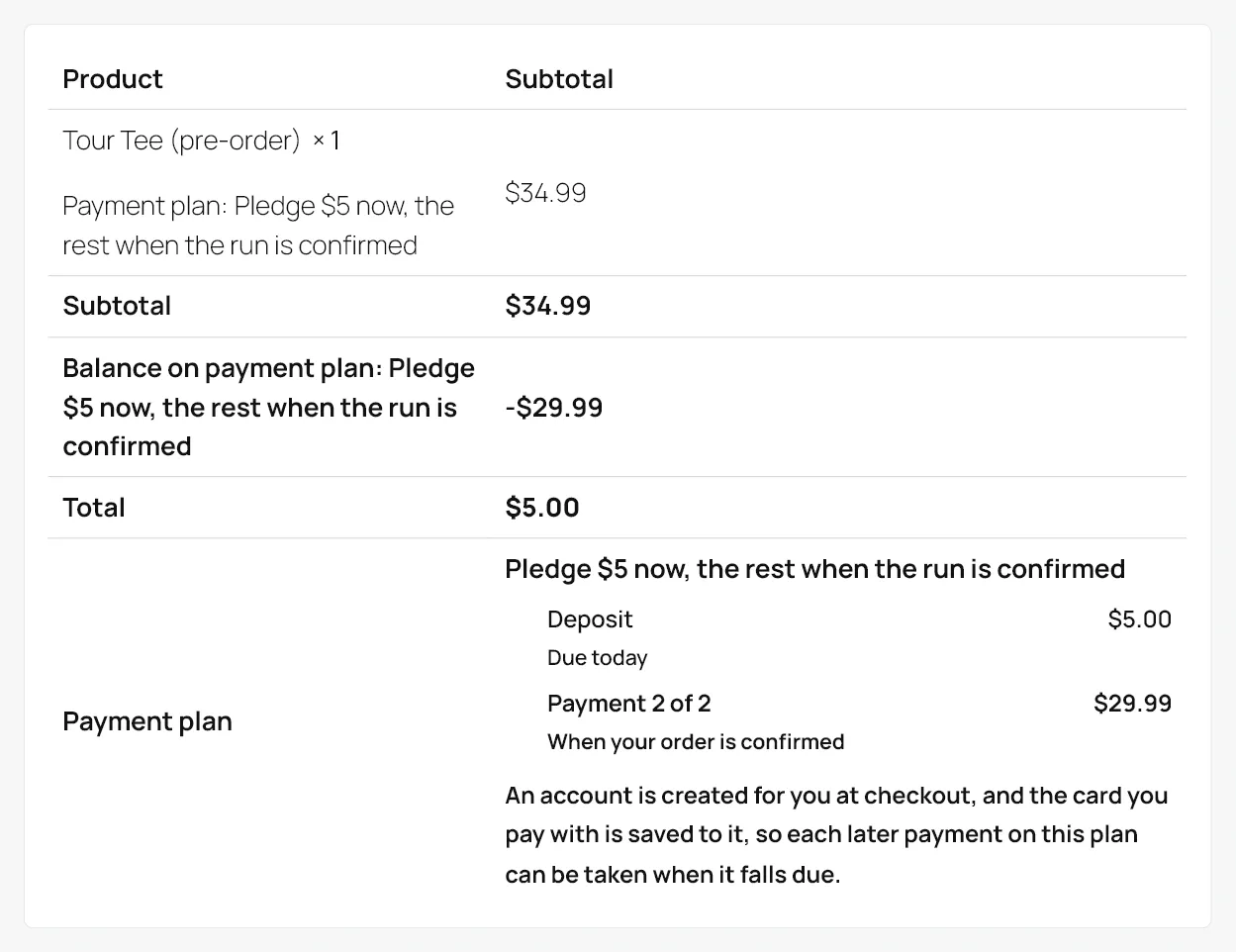
The cart shows the plan chosen for each item, with its schedule, and the cart total becomes the deposit rather than the full price. The rest of the price is shown as deferred, so nothing about the total is unexplained.
A cart holding both a plan item and a subscription product cannot be checked out on a plan, and the cart says so.
The checkout
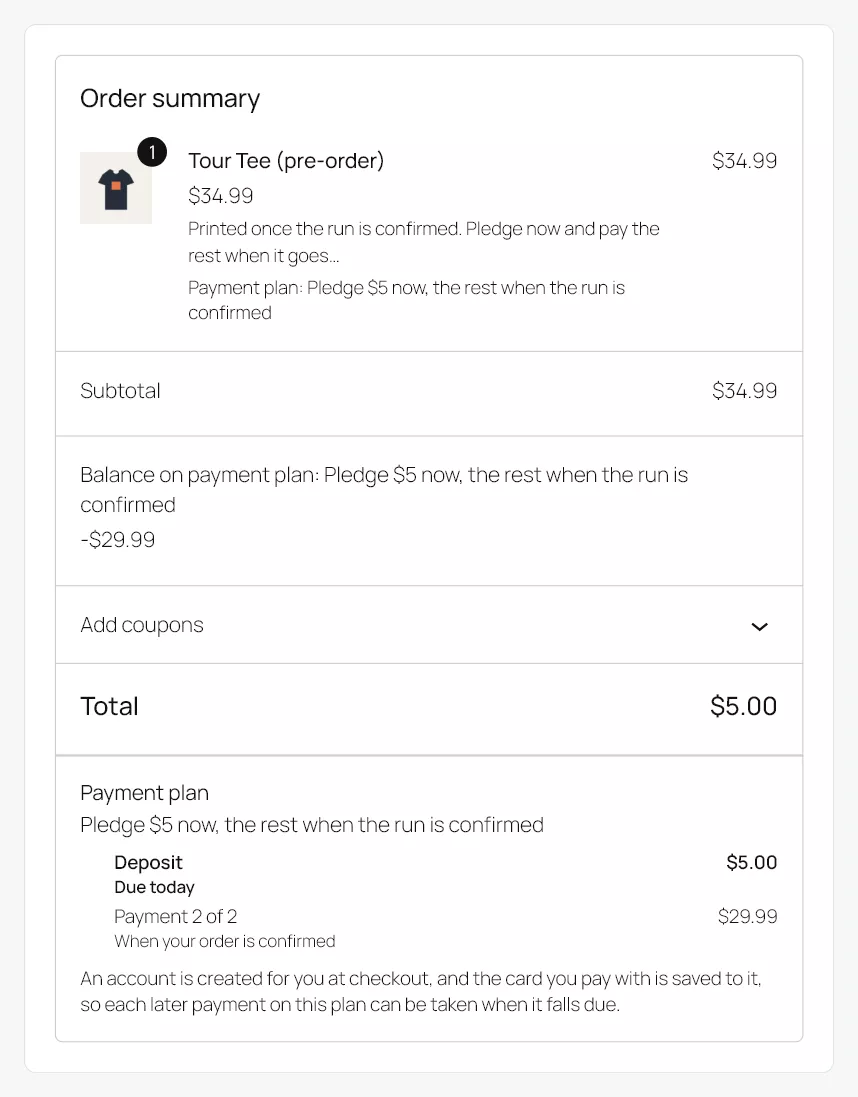
Both the classic checkout and Checkout Blocks show the same thing: the amount payable now, and the schedule for the rest. The amount the gateway is asked for is the deposit shown on the product page.
The account and the saved card
A later payment can only be charged to a card the store has saved, and a saved card can only belong to an account. So when the cart holds a plan with anything left to collect, and at least one of your payment methods can charge a saved card on a schedule, the checkout does two things on its own:
- It creates an account for a guest. No account box to tick. On the classic checkout the account is created from the billing email with a generated password, and WooCommerce sends its usual new-account email. If your store is set to let customers choose a password at checkout, a password field appears instead. Checkout Blocks creates the account silently in the same way. A customer who is already signed in simply uses their account.
- It saves the card. The save-card box that the gateway normally shows is not shown, and the card is saved regardless. This applies on both checkouts, with any gateway that supports WooCommerce Subscriptions.
The customer is told, in one sentence beside the schedule. A guest reads: “An account is created for you at checkout, and the card you pay with is saved to it, so each later payment on this plan can be taken when it falls due.” A signed-in customer reads: “The card you pay with is saved to your account, so each later payment on this plan can be taken when it falls due.”
Nothing changes for a cart without a plan, for a plan that takes the whole price at checkout, or on a store where no payment method can charge a saved card on a schedule. In those cases the checkout behaves exactly as WooCommerce always has, guest checkout included.
Express wallet buttons, where your gateway offers them on a product page, are not shown on a product that offers a plan, because they would add the product to the cart without the plan being chosen. They appear at checkout as usual, where the cart already carries the plan and the amount is the deposit.
Coupons
A coupon discounts the order, not the deposit. A 20% coupon on a 200.00 product sold half and half produces payments of 80.00 and 80.00, not 100.00 and 60.00. This is the behaviour merchants most often find missing in this category, and it is why percentages are resolved at the moment of purchase rather than stored.
Tax
Each payment is a share of the price including tax and carries its share of the tax at each rate. The deposit shown on the product page is the deposit taken at the checkout whether your store enters prices with tax or without.
Every payment order records its own tax, and the tax across an order and its payments adds up to the tax on the goods. On a store that shows prices excluding tax, each payment says how much of it is tax.
The confirmation and the emails
The order confirmation and the customer’s order email carry the schedule, so the customer has a written record of what they agreed to and when each payment is due.
Each later payment produces its own order, and your store’s own order emails cover it in the ordinary way.
My Account
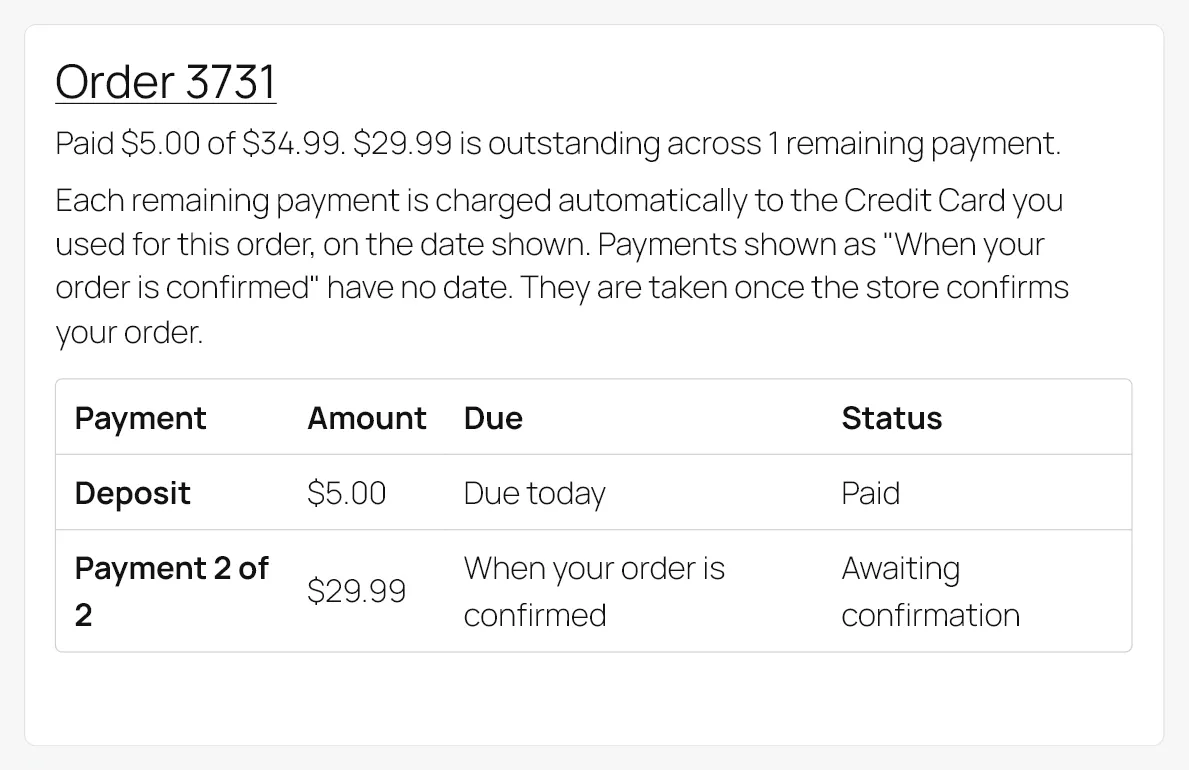
A Payment plans section under My Account lists every plan the customer is on. For each one it shows how much has been paid, how much is outstanding, how many payments remain and the whole schedule with each payment’s state.
Each plan also says how the rest of it gets paid: charged to the card used for that order, or emailed to the customer as a link when it falls due. It is read from that order’s own payment method and saved card, so a customer with two plans bought different ways is told the truth about each. A schedule of dates on its own reads as a promise that the money will be taken on them, and on an order that cannot be charged that is not what happens.
A payment collected when you decide reads When your order is confirmed in the schedule, with the status Awaiting confirmation, and the plan carries one more sentence: “Payments shown as When your order is confirmed have no date. They are taken once the store confirms your order.”
When a payment cannot be charged automatically, this screen carries a Pay now link for it. The customer pays with any gateway your store accepts, and the plan advances exactly as it would have on an automatic charge. This is the path every plan takes on a store without WooCommerce Subscriptions.
Next steps
See The Order Screen.