
Deposits & Payment Plans for WooCommerce
The official deposits plugin cannot charge the balance at all: it emails the customer and hopes. This one takes the deposit, then charges the rest to the card they already used, on any gateway that supports WooCommerce Subscriptions.
The Order Screen
Every order sold on a plan carries a Payment plan box on its edit screen. This page covers what it shows and what you can do from it.
The box is on both order screens, whether your store uses High-Performance Order Storage or the legacy one.
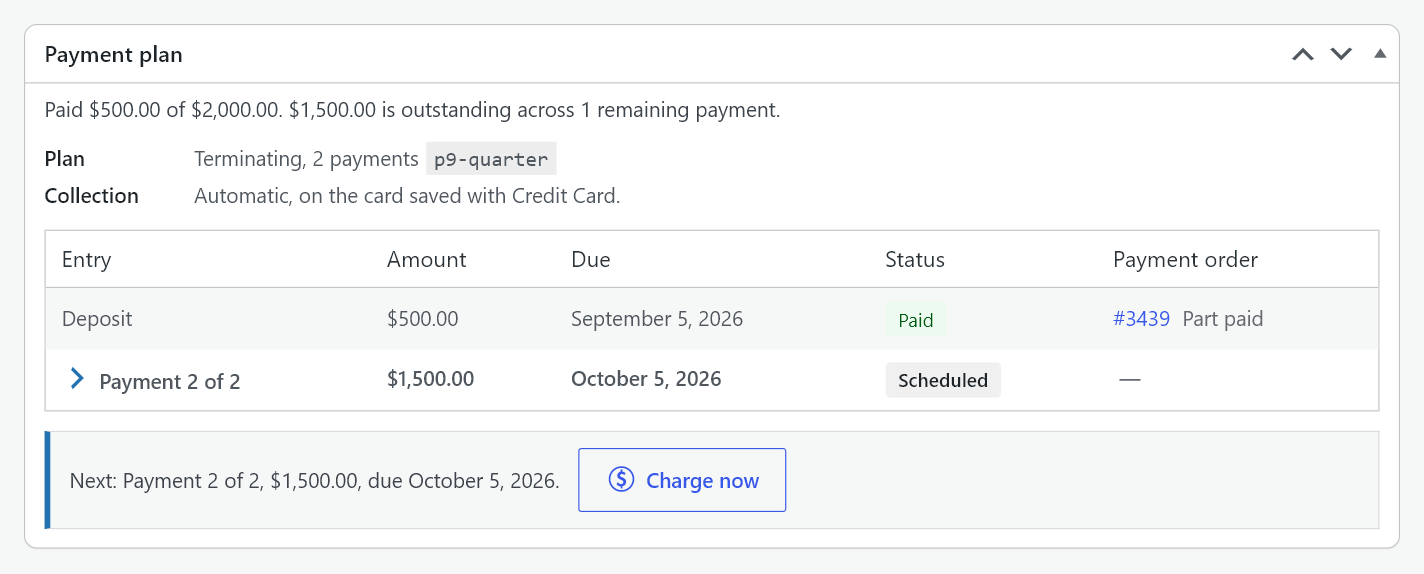
The summary
The mode and the length, then what happens next. A terminating plan reads “Terminating, 3 payments” with a line such as “Next: Payment 2 of 3, $60.00, due 14 June 2026.” When the next payment has no date the line reads “Next: Payment 2 of 2, $29.99, when you decide.” A repeating plan says how many cycles have completed and that it does not end.
The schedule
One row per payment, with:
- Its label. Deposit, or Payment 2 of 3.
- Its amount, exactly as it will be charged.
- Its due date, or When you decide for a payment that has none.
- Its status. Paid, Being collected, Failed, Overdue, Scheduled, or Waiting for you on a payment with no date, because nothing is booked for it.
- The payment order it was collected on, as a link. Open it for the gateway’s own transaction record.
Each payment is collected on its own order, linked back to this one. That is what keeps a plan’s money reportable: every charge is a real order with its own record, and every one of them names its parent.
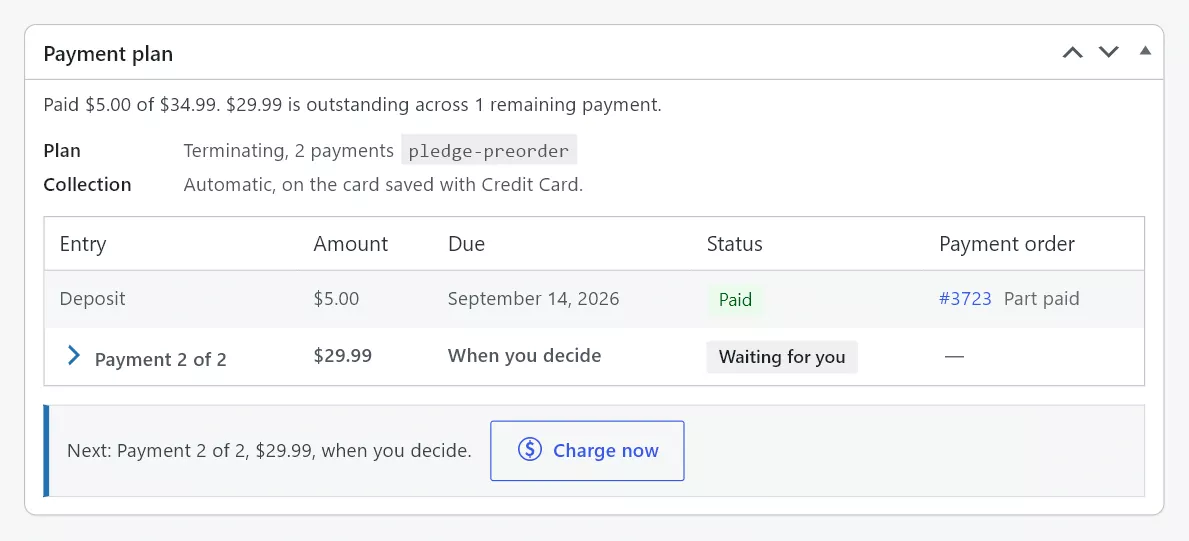
Collection
How the next payment will be taken, in plain words.
- Automatic, on the card saved with [gateway]. The payment will be charged on its due date with nothing for you or the customer to do.
- By payment link ([gateway]). The payment will be offered to the customer under My Account instead. The reason follows in a sentence: the gateway cannot store a card, WooCommerce Subscriptions is not active, saved cards are switched off, or no saved card is attached to this order or to the customer’s account. See Troubleshooting for what each reason means and what to do.
Reading this before the due date is how you find out that a plan will not collect automatically while there is still time to do something about it. An order that arrives with no saved card is also told so the moment it is paid, in an order note beginning “Payment plan: the later payments on this order cannot be charged automatically”, so you do not have to open it to find out.
Last result and attempts
What the gateway said the last time it was asked, in the gateway’s own words, and how many attempts have been made. A payment is only ever marked paid on a result read back from the gateway, never on the fact that a charge was sent.
Charge now
Takes the next payment immediately rather than waiting for its due date, and is the way to collect a single payment that has no date. The button reports the outcome in place, with the gateway’s reason on a failure.
The button is unavailable, with the reason shown, when the plan is finished, when the plan was cancelled, when the payment is already being charged, or when the next payment is for zero and settles without a charge.
A charge asked for here takes exactly the same path as one the calendar asks for. There is one preparation, one charge and one set of guards however a payment is collected, so nothing is charged twice.
The order statuses
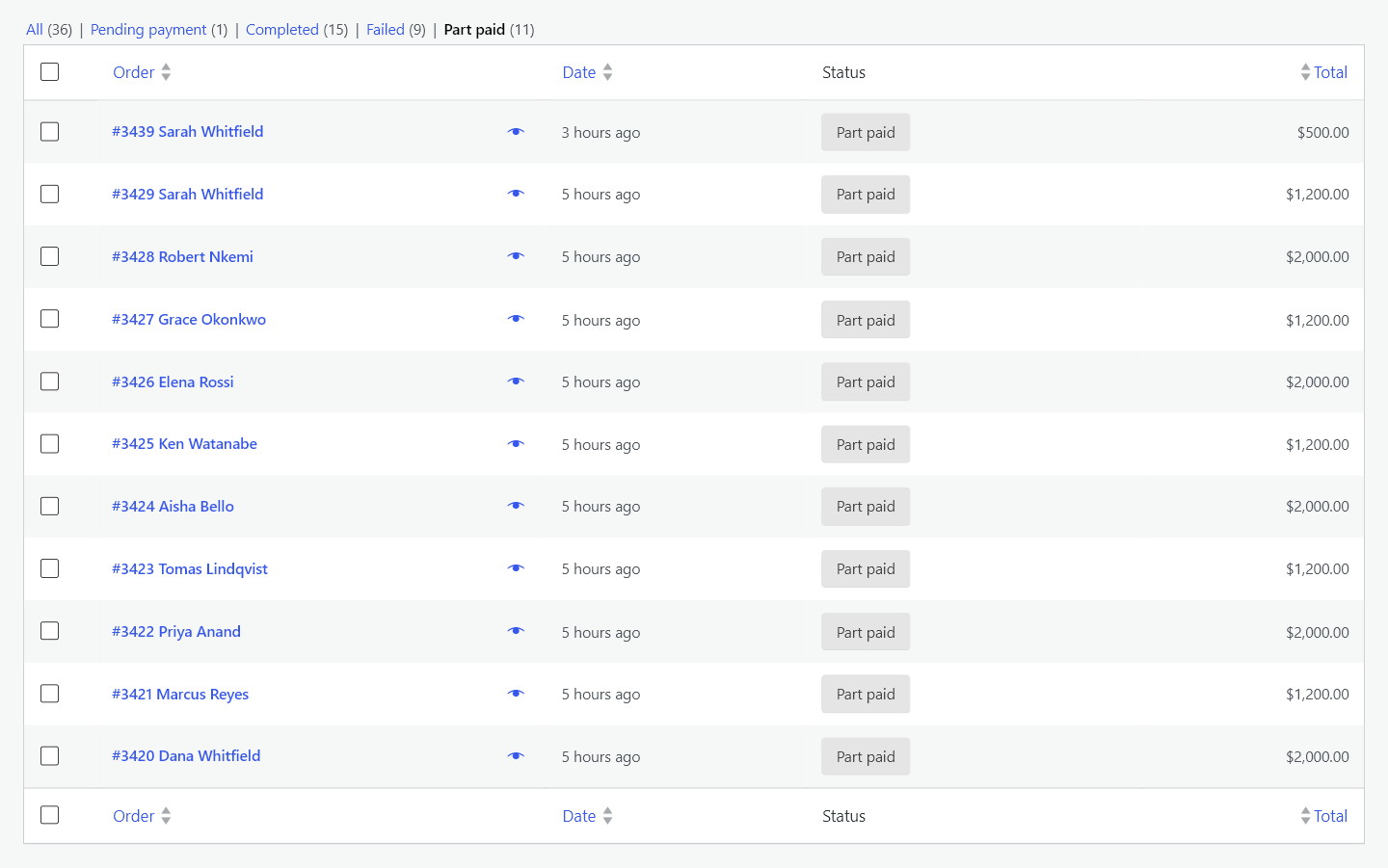
The plugin adds two order statuses. They behave like any other WooCommerce status in lists, filters, reports and exports.
- Part paid. The deposit is in and the plan is still running. The order is not ready to fulfil.
- Payment overdue. A payment is past its due date and has not been collected. This status is a request for a decision, not a cancellation.
When the payment that releases fulfilment clears, the order moves to Processing on its own and your fulfilment tools see it exactly as they see any other paid order.
Editing an order on a plan
Changing an order’s line items after the sale does not rewrite the plan. The schedule the customer agreed to is stored on the order and is not recalculated behind them. If you need a different schedule, refund and re-sell.
Cancelling one order
Refund the order in full from WooCommerce’s refund panel, or cancel it. Either stops the plan, and the box says so. To cancel and refund a whole set of orders at once, for a campaign that does not go ahead, use Cancel and refund on Outstanding balances instead. See Outstanding Balances and Batches.