How to Add Custom Code to WordPress (Without Breaking Your Site)
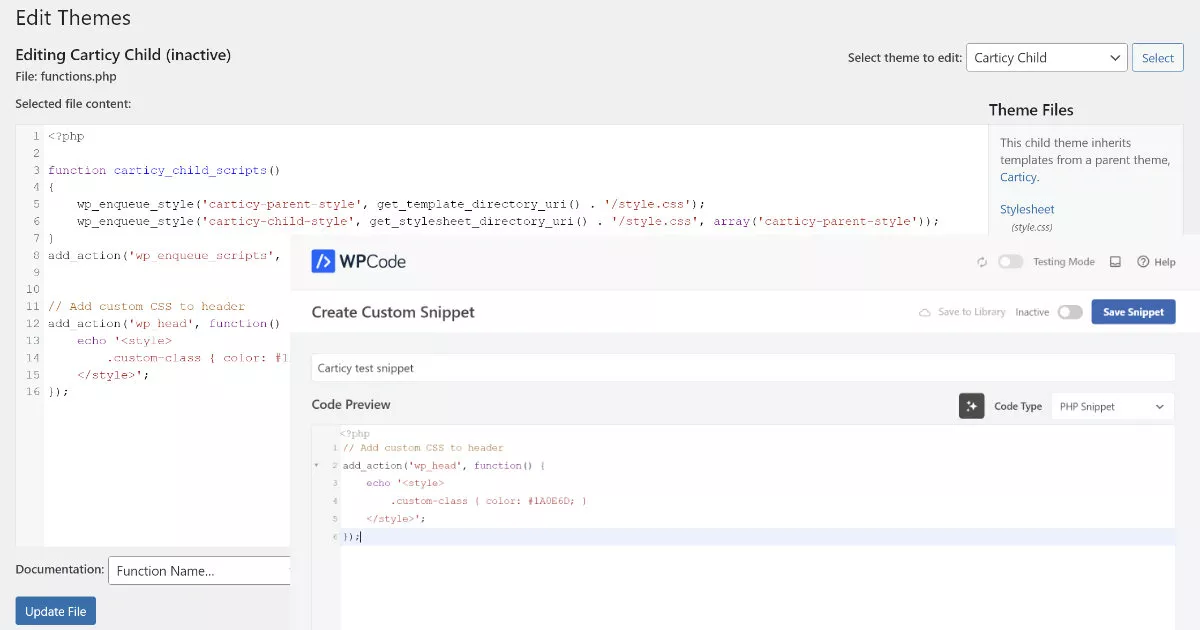
Need to add tracking codes, custom CSS, or PHP functions to your WordPress site? There are two ways to do this safely: using your child theme’s functions.php file or installing a code snippets plugin like WPCode.
The right approach depends on how much code you’re adding. For a single snippet (Google Analytics, custom CSS tweak, or one PHP function), your child theme works best. Managing ten different snippets? A plugin makes more sense.
Method 1: Child Theme Functions.php (Best for Single Snippets)
This is the cleanest approach when you need to add just one or two code snippets. No plugin overhead, no extra database queries.
First, you need a child theme. If you don’t have one yet, follow the official WordPress child theme guide. Critical point: never add code directly to your parent theme. Theme updates will wipe it out.
Navigate to Appearance > Theme File Editor in your WordPress dashboard. You’ll see a warning about editing files directly, that’s fine, we’re working in the child theme. Select your child theme from the dropdown in the top right, then click on functions.php in the file list.
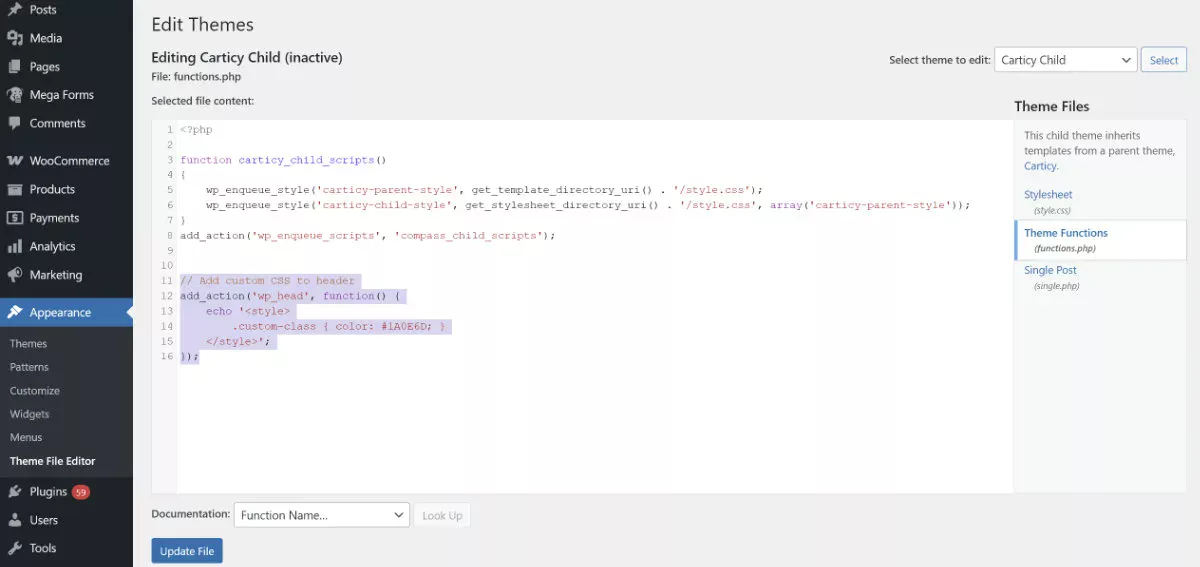
WordPress loads your child theme’s functions.php first, then the parent theme’s version. This means your code runs without conflicts. Add your custom code at the very bottom of the file, after all existing code. Here’s an example for adding CSS to your site header:
// Add custom CSS to header
add_action('wp_head', function() {
    echo '<style>
        .custom-class { color: #1A0E6D; }
    </style>';
});
One warning: don’t copy functions directly from your parent theme’s functions.php into the child theme. WordPress will try to load both versions and you’ll get fatal errors from duplicate function names. If you need to modify a parent theme function, check if it uses function_exists() checks, that’s what allows safe overriding.
Method 2: WPCode Plugin (Best for Multiple Snippets)
When you’re managing five tracking codes, custom PHP functions, and CSS tweaks, a plugin keeps everything organized. WPCode is the most popular option with over 2 million active installations.
Install WPCode from your WordPress plugins directory. Once activated, you’ll see a new Code Snippets menu in your dashboard.
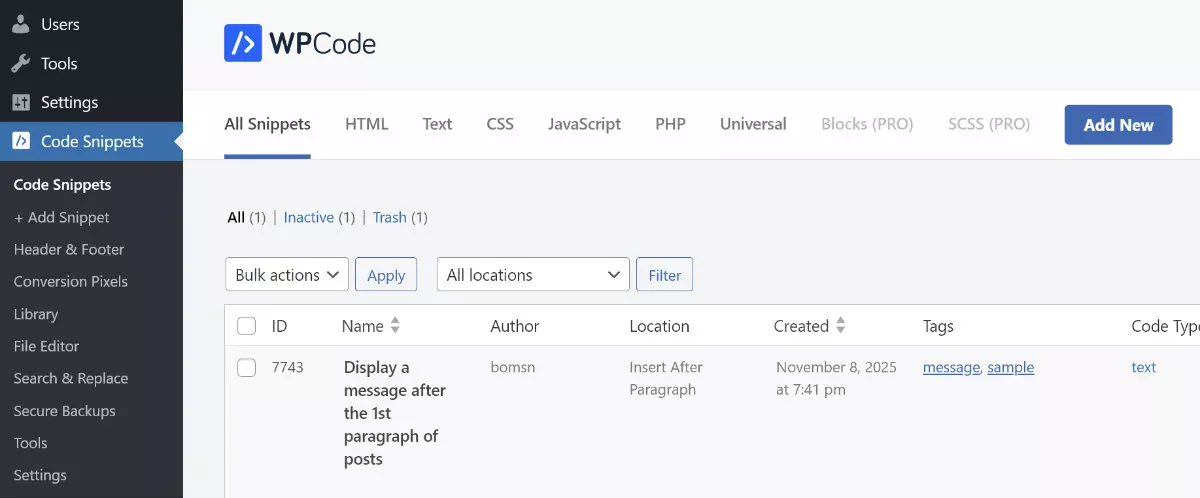
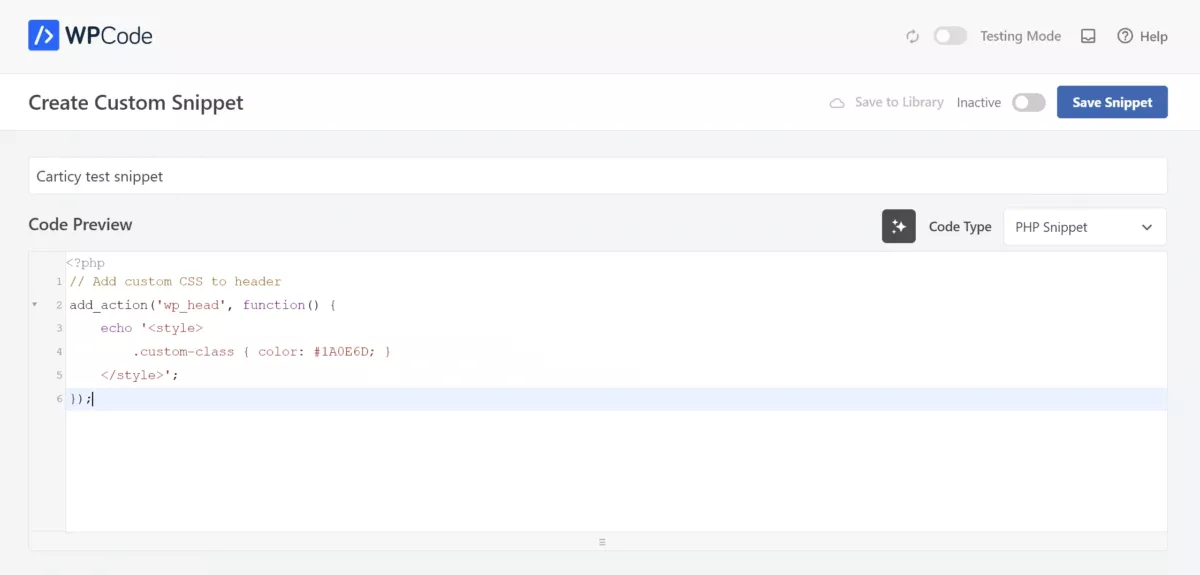
Click Code Snippets > Add New, then select “Add Your Custom Code (New Snippet)”. Give your snippet a descriptive name, you’ll thank yourself later when managing dozens of snippets. You’ll be prompted to select the code type from the dialog: PHP Snippet, CSS Snippet, JavaScript, HTML, or Text. Select the appropriate type and paste your code into the editor.
The Insertion section controls where your code runs. “Auto Insert” loads it automatically, while “Shortcode” lets you place it manually in posts. Location options include Site Wide Header, Site Wide Footer, Admin Only, or Frontend Only. For something like Google Analytics, choose Site Wide Header.
The plugin’s error handling is what separates it from manual editing. If you activate a snippet with a syntax error, WPCode catches it and disables the snippet automatically. Your site stays up while you fix the issue.
Which Method Should You Use?
Use the child theme approach when you have one or two snippets that rarely change. It’s leaner, no plugin overhead, no extra HTTP requests, no database queries for loading snippets.
Switch to WPCode when you’re juggling multiple snippets or need to enable/disable code without editing files. The organization alone saves time on sites where you’re constantly testing different tracking codes or custom functionality.
Both methods are safe when done correctly. The child theme approach requires more caution, one syntax error and you’re locked out until you fix it via FTP. WPCode’s validation catches those errors before activation, which is why it’s better for store owners who aren’t comfortable debugging PHP.
Whichever method you choose, always test on a staging site first. And keep backups. Custom code is powerful, but it’s also the fastest way to break a site if you’re not careful.
About the Author