
WooCommerce Advanced Files Uploader
Empower your customers to personalize their products with our Advanced Files Uploader for WooCommerce.
Advanced Files Uploader Customer Upload Flow
This guide shows the customer-facing upload flow from product page to cart using a real WooCommerce test product with image uploads and charge-per-file pricing enabled.
Product page upload
When uploads are enabled on a product, the upload field appears on the product page before the add-to-cart button. Customers can drag a file into the drop zone or use the browse button.
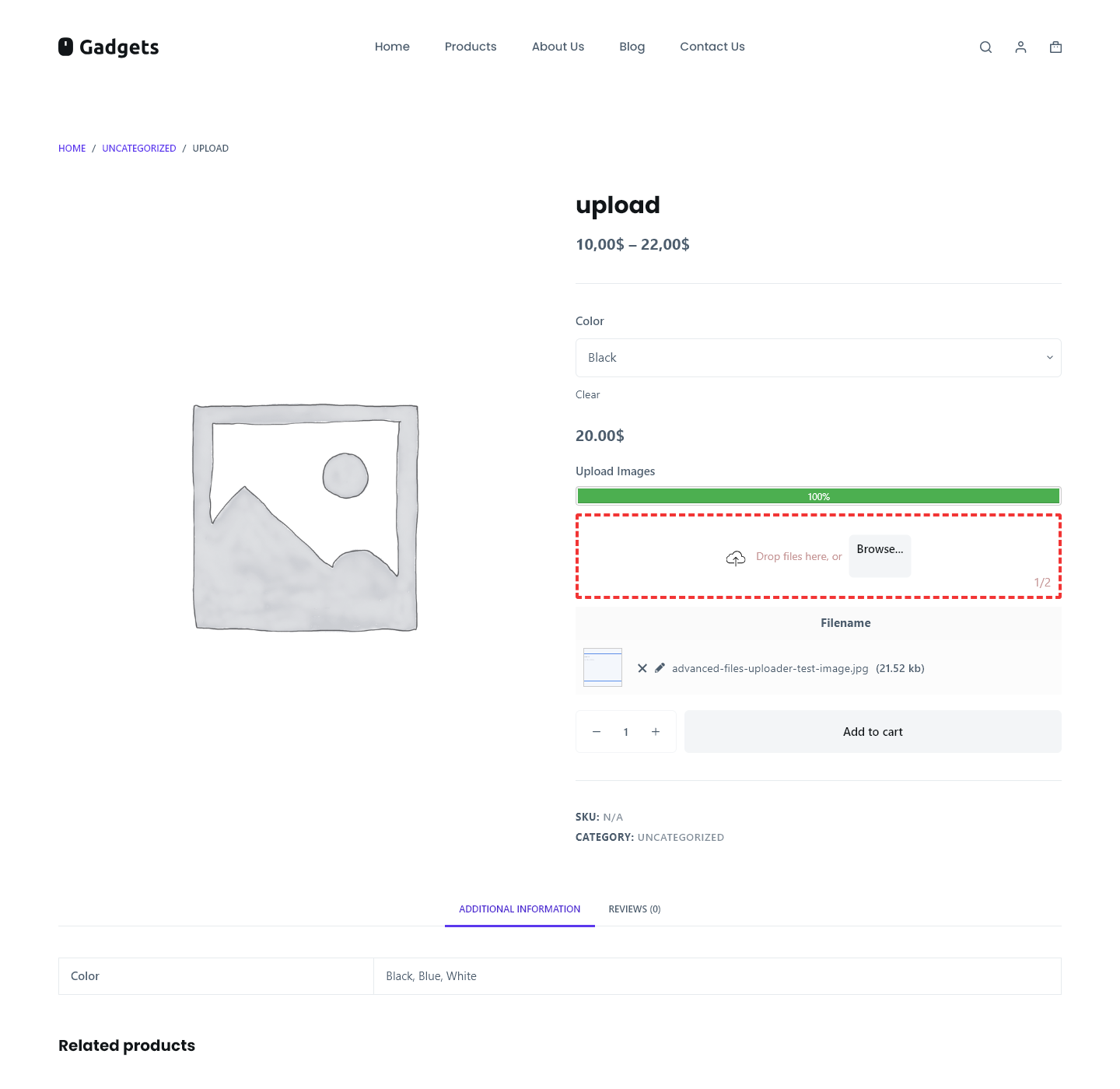
In this verified test, the product accepted image uploads, showed a progress bar, displayed the uploaded file name, and updated the product price after one file was uploaded.
Price update before add to cart
If Charge per files is enabled, the product price changes before add to cart. The tested product had a base price of 10.00 and a price per file of 10.00, so one uploaded file changed the displayed product price to 20.00.
Use this behavior for products where each uploaded asset adds production work, such as one print file per design, one embroidery file per item, or one proof file per product.
Cart summary
After add to cart, the uploaded file is attached to the cart item. When cart summaries are enabled globally, the file name appears under the cart item so the customer can confirm the correct file is attached.
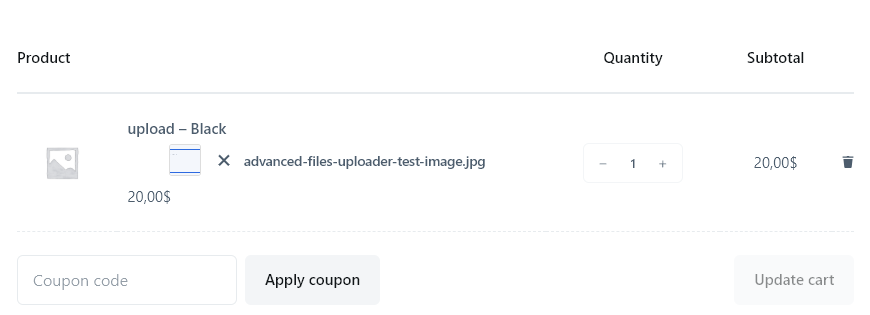
Checkout, order details, and emails
The same uploaded file data follows the order after checkout. Depending on the global summary locations, uploaded file details can appear on checkout, the thank-you page, customer order details, and order emails.
Image previews in summary areas are optional. The plugin settings warn that summary image previews are not supported in WooCommerce cart and checkout blocks and can slow down pages that display many images.
What to test before launch
- Upload a file that should be accepted by the product rules.
- Upload a file with a blocked extension and confirm the customer sees a clear validation message.
- Test minimum and maximum upload rules when enabled.
- Confirm charge-per-file pricing updates before add to cart.
- Place a test order and confirm store staff can access the uploaded files from the order.
- Check cart and checkout block templates if the store uses WooCommerce blocks.