
Carticy Conversions for WooCommerce
Your thank-you page misses conversions every day — abandoned redirects, ad blockers, Safari, consent banners. Track from the order instead, and stop under-counting what your ads actually earned.
Getting started with Carticy Conversions
Carticy Conversions takes you from activation to verified tracking in a few minutes. As long as WooCommerce is active, a guided wizard handles the rest: choosing your platforms, pasting your IDs, setting your consent posture, and confirming everything works on a real order.
1. Install and activate
Install Carticy Conversions from your WordPress dashboard under Plugins → Add New, or upload the plugin ZIP, and activate it with WooCommerce already running. On activation it registers the tracking engine and adds a top-level Carticy Conversions menu.
2. Run the setup wizard
Open Carticy Conversions and the wizard starts on its own. There are five short steps:
- Platforms. Pick Google (GA4 and Google Ads), Meta, or both. You only configure what you choose.
- Delivery. Install tags directly (recommended) or import a ready-made Google Tag Manager container.
- Connect. Paste your IDs. Every field has an inline “Where do I find this?” walkthrough with real screenshots, and any existing tags are detected so you don’t add a duplicate pixel.
- Consent. Tell the plugin how your store handles cookie consent. Nothing is sent without permission.
- Verify. Confirm tracking works on a real purchase.
3. Verify on a real purchase
Verification is based on an actual event rather than a checkbox. The green check appears only after a real purchase has been recorded, so place a small test order (any inexpensive product, any gateway), mark it paid, then come back and click Check again. Once the purchase shows up, you can finish setup.
4. Read your dashboard
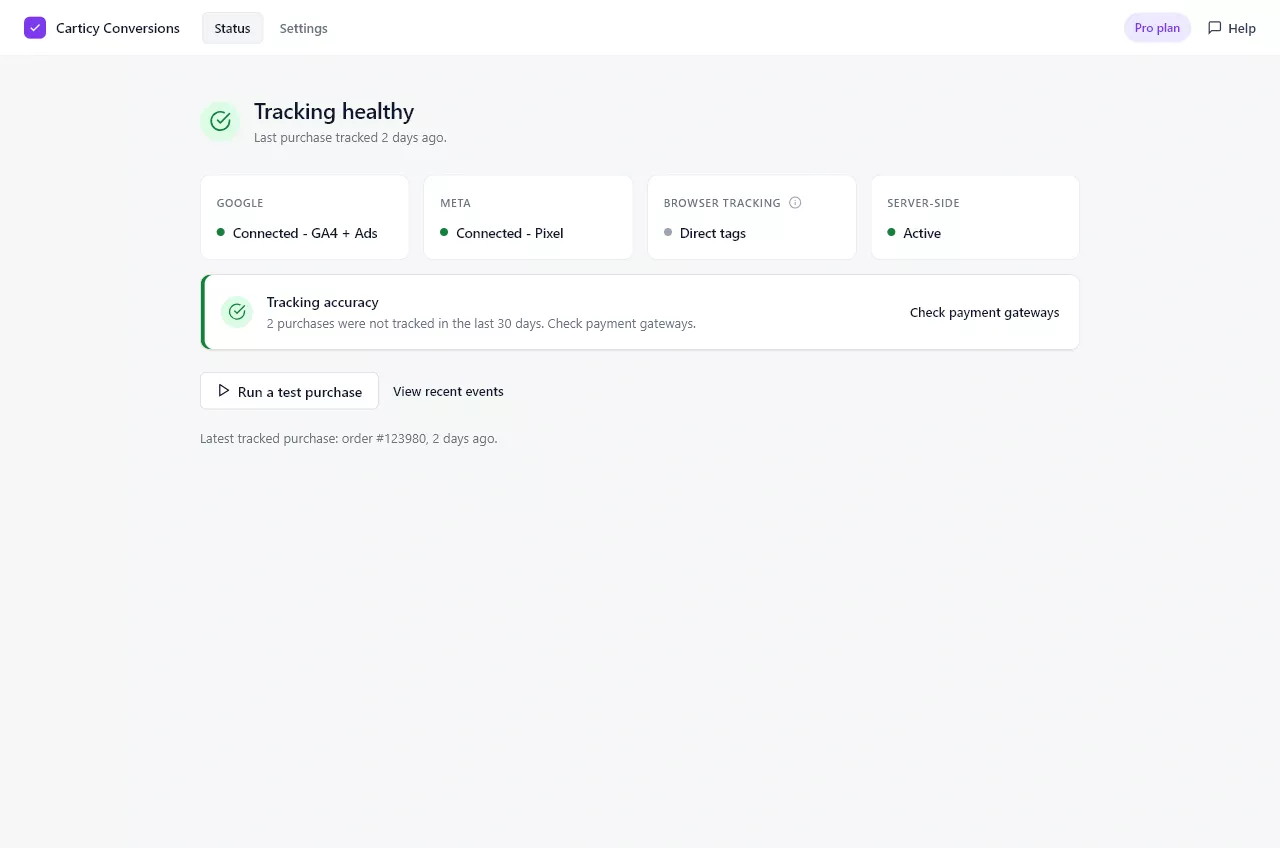
After setup, the Home screen shows your tracking health, a status tile for each platform, and a payment-gateway accuracy check. These reflect recorded events, so when the dashboard reads “Tracking healthy,” at least one real purchase has been tracked.
That covers everything you need to be operational. From here, see Connect GA4, Google Ads, and the Meta Pixel for help finding each ID, and Consent, GDPR, and privacy to match the plugin to your store’s policy.