WooCommerce Distance Based Shipping for Local Delivery
Flat-rate shipping made sense on paper. In practice? You’re either overcharging customers who live two blocks away or losing money on deliveries 30 miles out.
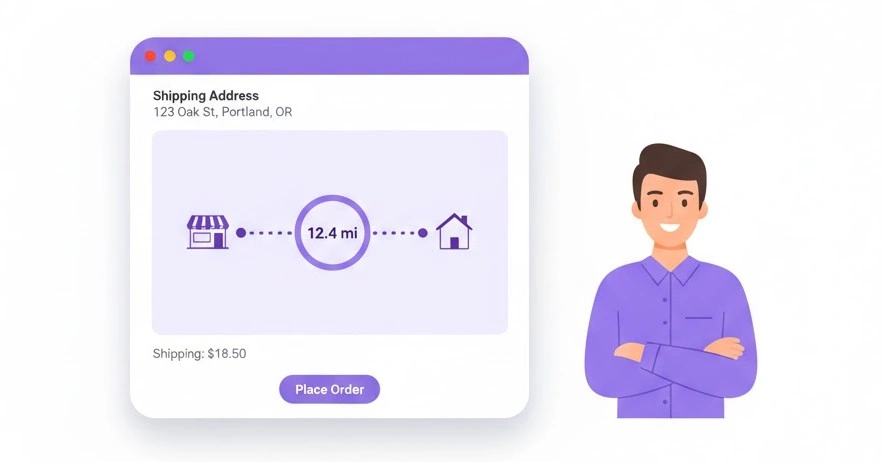
Distance-based shipping fixes this. Customers pay based on how far they actually are from your store. Simple.
The Problem with Flat Rates
Every mile adds cost. Fuel, time, vehicle wear. A $10 flat delivery fee works fine for nearby customers, but that same $10 doesn’t cover the actual expense of driving 25 miles across town.
Distance-based shipping aligns what customers pay with your real costs. We built our WooCommerce Shipping Rate by Distance plugin to handle this calculation automatically using Google’s powerful Routes API. It measures actual driving distance, not straight-line measurements that ignore roads and traffic patterns.
How Distance-Based Pricing Helps Local Delivery
The immediate benefit is transparency. Customers see upfront why delivery costs what it does. Someone 3 miles away pays $8, someone 15 miles away pays $22. Both know they’re paying for actual distance.
You can offer free delivery within a small radius to build local loyalty. Set your base fee at $0 for 0-5 miles, then charge $2 per mile after that. Or use tiered pricing: $5 for 0-10 miles, $12 for 10-20 miles, $20 for 20-30 miles.
Maximum delivery distance settings prevent unprofitable orders. If you don’t want to drive more than 25 miles, set that as your limit. Orders beyond that distance won’t see the shipping option at checkout.

Plugin Configuration
Download the plugin from your Carticy account and install it like any WordPress plugin. Navigate to Plugins, Add New, Upload Plugin, then activate.
After activation, navigate to WooCommerce > Settings > Shipping > Shipping Rate by Distance to access the main configuration page.
The plugin connects to Google’s Routes API for distance calculations. You’ll need a Google Maps API key, which requires a Google Cloud account. Google provides free monthly credits that cover typical store usage, though you’ll need to add billing information to activate the API.
Configure these settings:
1. Enable/Disable – Activate the distance-based shipping method. Check this box to make the shipping option available.
2. Google API Key – Paste your Google Maps API key here. We’ll generate this in the next step.
3. Show Distance – Display the calculated distance to customers at checkout. Enabling this shows transparency in your pricing.
4. Debugging – Enable this only when troubleshooting. It displays technical messages on the frontend to help diagnose calculation issues.
5. Unit – Select KM or Mile. All distance calculations and pricing will use your selected unit.
6. Full Address – Enter your store’s street address. This is the starting point for all distance calculations.
7. City / State – Your store’s city and state.
8. Postcode / ZIP – Your store’s postal code.
9. Country – Your country code in the format US:NY (United States, New York state). Use your country’s two-letter code followed by the state/province code.
10. Minimum order – Enable this to allow setting minimum order requirements in your shipping rules. This gives you flexibility to require minimum purchase amounts for specific distance-based delivery rules.
11. Price per KM/Mile – Toggle between per-unit pricing (charge per mile/km) or per-range pricing (charge flat rates for distance ranges). Enable this for per-unit pricing.
Click Save changes when finished.
Google API Setup
In Google Cloud Console, create a new project or select an existing one. Navigate to APIs and Services, then Library.
Search for “Routes API” and click Enable.
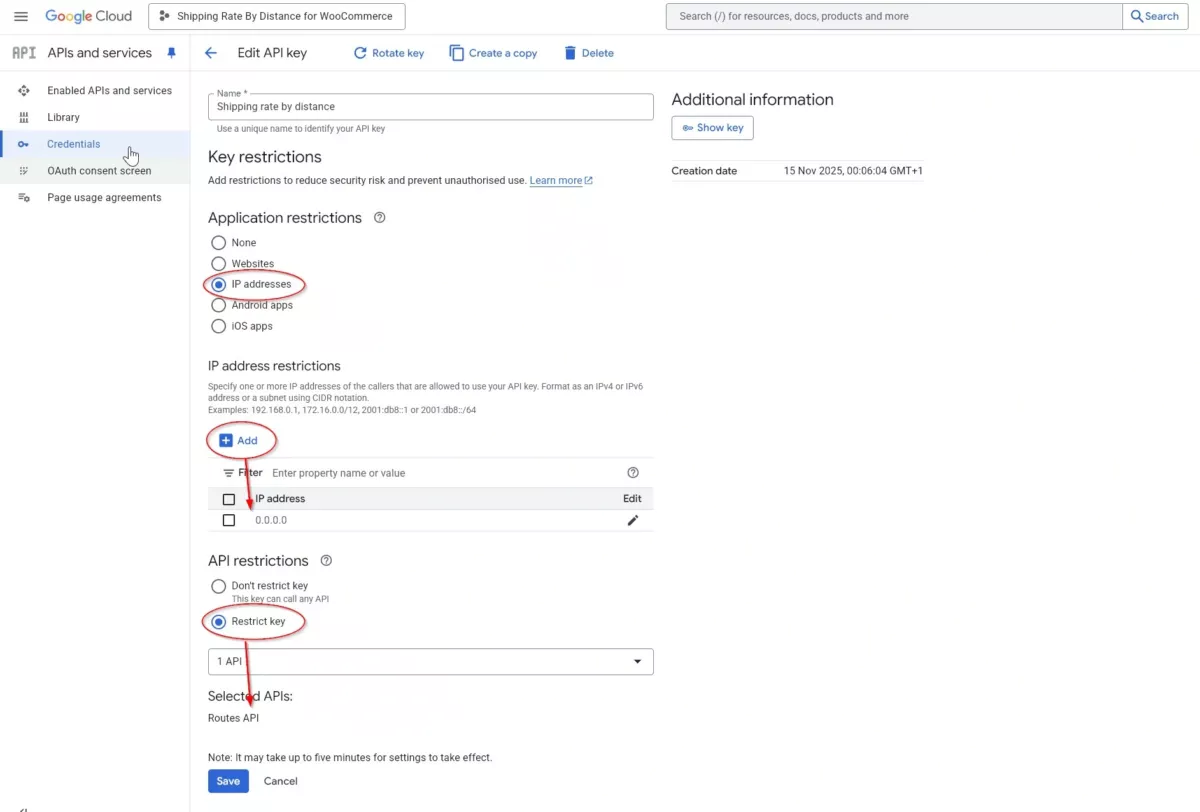
After enabling the API, navigate to Credentials in the left sidebar. Click Create Credentials and select API Key.
Important: Configure API key restrictions for security. Under Application restrictions, select IP addresses (web servers, cron jobs, etc.) and add your server’s IP address. The plugin makes server-side requests from your WordPress installation, not from customer browsers. Domain-based restrictions will cause errors.
Under API restrictions, select Restrict key and choose Routes API from the dropdown.
Copy your API key and paste it into the Google API Key field in your WordPress plugin settings.
Configuring Shipping Rules
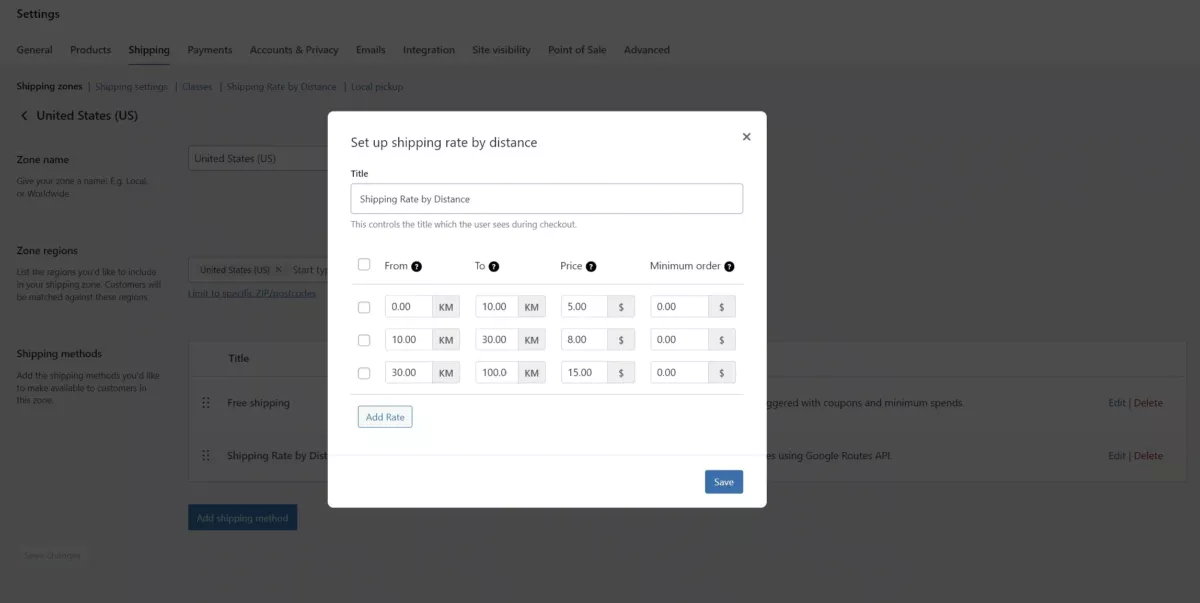
Navigate to WooCommerce > Settings > Shipping > Shipping zones. Select the zone where you want to offer distance-based shipping.
Click Add shipping method, select Shipping Rate by Distance, and click Add shipping method.
Click on the method name to configure your distance-based pricing rules.
Title – Enter the name customers will see at checkout (e.g., “Local Delivery” or “Distance-Based Shipping”).
Set up your pricing rules using the table:
From – Starting distance for this rate (in KM or Miles based on your unit setting).
To – Ending distance for this rate. This also serves as your maximum delivery distance for this zone.
Price – The shipping cost for this distance range. How this works depends on your “Price per KM/Mile” setting from the previous step:
- If Price per KM/Mile is enabled: The price will be multiplied by the actual distance. For example, if you set $1.50 and the customer is 12 miles away, they pay $18.00.
- If Price per KM/Mile is disabled: The price is a fixed rate for that entire distance range. For example, $8.00 for any delivery between 10-30 km.
Minimum order – Optional minimum cart total required to use this rate. Leave at 0.00 if no minimum is needed.
Click Add Rate to create additional distance tiers. You can set up as many tiers as you need.
For a bakery delivering locally, you might configure:
- 0-10 KM: $5.00 (fixed rate for nearby customers)
- 10-30 KM: $8.00 (medium distance)
- 30-50 KM: $15.00 (maximum delivery distance)
Click Save when finished.
Important: If a customer’s calculated distance exceeds your maximum (the highest “To” value), they won’t see this shipping option at checkout. The system will either show other available shipping methods or display “Shipping not available” if no other methods exist for that zone.
You can set up different distance-based rules for each shipping zone. Zones without the Shipping Rate by Distance method will use their configured shipping methods (flat rate, free shipping, etc.).
Testing Your Setup
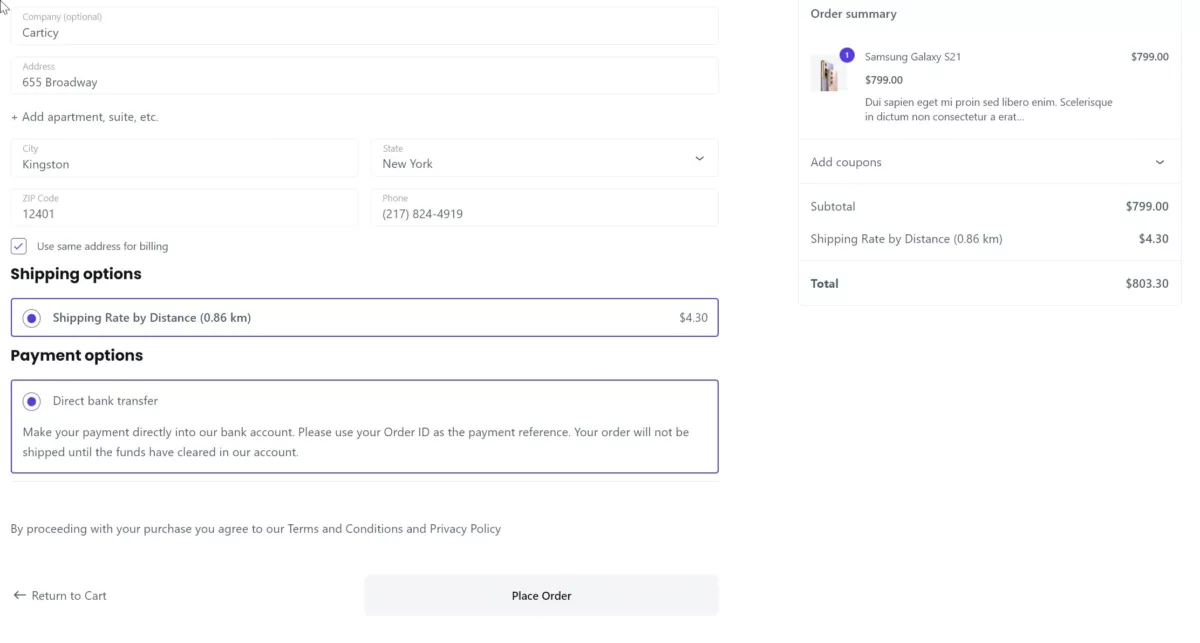
Add a product to your cart and proceed to checkout. Enter a test address within your delivery zone. The plugin calculates distance in real-time and displays the shipping cost.
Test addresses at different distances to verify your pricing tiers work correctly. Try an address beyond your maximum distance to confirm the shipping method doesn’t appear.
Real-World Examples
A flower shop offers free delivery within 5 km, then charges $2 per km up to 20 km maximum. Nearby customers get free delivery, distant customers pay fair rates, and orders stay within a manageable delivery area.
A furniture store uses fixed tiered pricing: $25 for 0-15 miles, $45 for 15-30 miles, $75 for 30-50 miles. Large items justify the fees, and customers know costs before placing orders.
Performance Notes
The plugin caches distance calculations. Repeat addresses don’t trigger new API calls, which speeds up checkout and reduces Google API costs.
Routes API calculates actual driving distance using real roads, not straight-line measurements. A customer 10 km away as the crow flies might be 14 km via actual roads. You charge for 14 km, which matches real driving distance.
Calculations run server-side. Checkout remains fast regardless of customer connection speed.
About the Author