
WooCommerce Advanced Files Uploader
Empower your customers to personalize their products with our Advanced Files Uploader for WooCommerce.
Enable Advanced Files Uploader on a Product
Uploads are enabled per product from the Advanced uploader product data tab. Use this guide to turn uploads on for one product and confirm the first product-level rules.
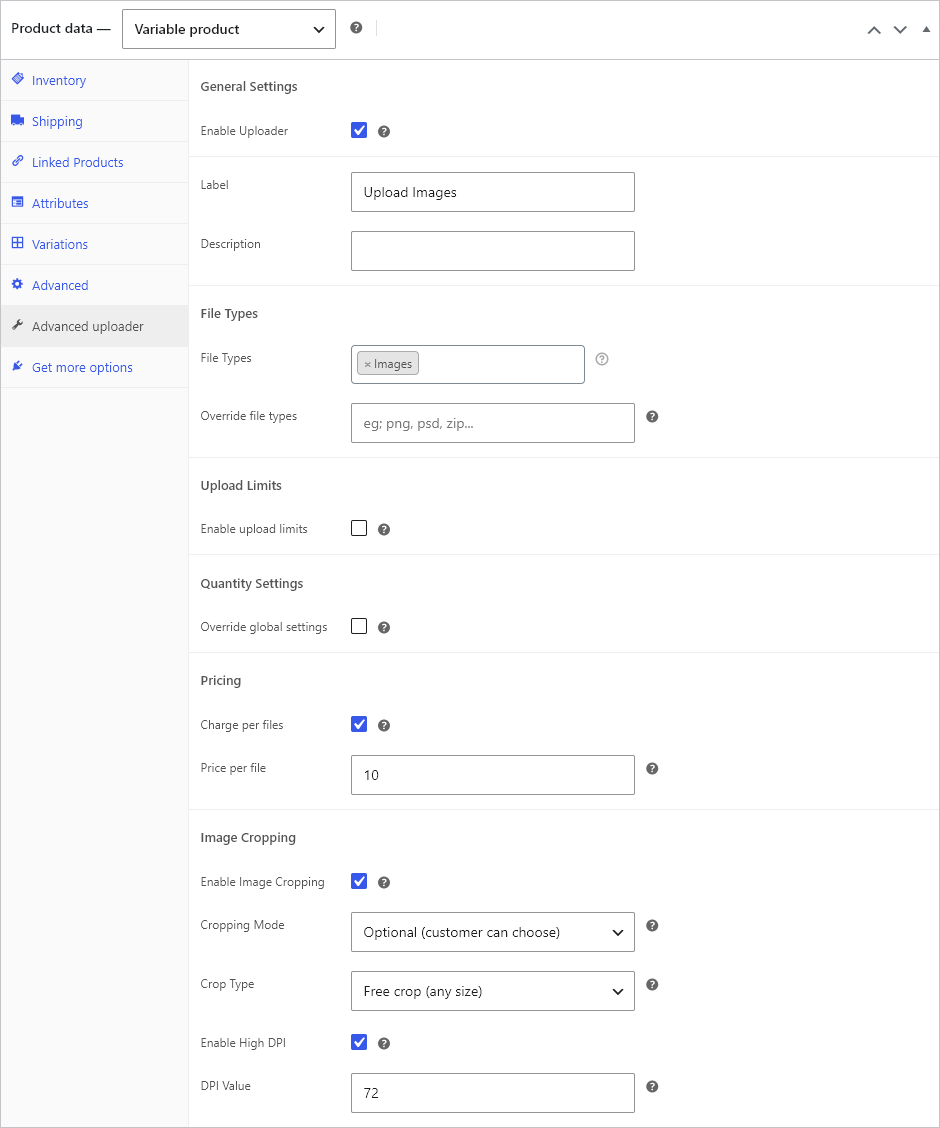
Enable uploads
- Go to Products > All Products and edit the product.
- Open the Product data panel.
- Select the Advanced uploader tab.
- Enable Enable Uploader.
- Enter a customer-facing label, such as Upload Images or Upload Print File.
- Use the description field for production notes, file quality requirements, or design instructions.
- Update the product.
Choose accepted file types
The File Types field accepts grouped file type presets. The current presets are Images, Archives, Audio and video, Adobe, and Microsoft Office.
Use Override file types when a product needs specific extensions instead of the preset groups. Enter extensions such as png, jpg, psd without leading dots.
Set upload limits when required
Enable upload limits reveals product-level controls for minimum uploads, maximum uploads, and file size limit in MB. The file size setting cannot exceed the server upload limit shown in the field description.
Use minimum uploads when the product cannot be purchased without a file, such as custom printing. Use maximum uploads when production can only handle a fixed number of files per item.
Charge per uploaded file
Charge per files adds the Price per file amount for each uploaded file. In the verified test product, the base product price was 10.00 and one uploaded file with a 10.00 price per file changed the product price to 20.00 before add to cart.
Do not combine charge-per-file pricing with product quantity sync. The plugin settings state that charge-per-file pricing does not work when uploaded file count is reflected on the WooCommerce product quantity field.
Enable image cropping when the product accepts images
Image cropping options appear when image uploads are enabled. Cropping can be optional or required, and crop type can be free crop, fixed dimensions, or aspect ratio depending on the product workflow.
Enable High DPI when cropped JPEG files need DPI metadata for print workflows. Set the DPI value to the production requirement for the product.
Verify on the storefront
- View the product on the storefront.
- Select any required variation options.
- Confirm the upload field appears under the product price and before the add-to-cart button.
- Upload a valid test file.
- Confirm the file appears in the uploaded files table and any price changes are visible before checkout.
Related
Deep-dive into product-level controls: File Types and Custom Extensions, Upload Limits and File Size Limits, Charge Per File and Quantity-Based Pricing, Image Cropping and High DPI, and Variation-Specific Upload Rules. See the end-to-end Customer Upload Flow.