
Deposits & Payment Plans for WooCommerce
The official deposits plugin cannot charge the balance at all: it emails the customer and hopes. This one takes the deposit, then charges the rest to the card they already used, on any gateway that supports WooCommerce Subscriptions.
Putting a Plan on a Product
A plan does nothing until a product offers it. This guide covers the Payment plans tab on the product edit screen and the same fields on a variation.
On a simple product
- Open the product and find Product data > Payment plans.
- Tick each plan you want to offer under Plans offered.
- Choose which one is Selected by default.
- Decide whether to tick Also offer paying in full.
- Update the product.
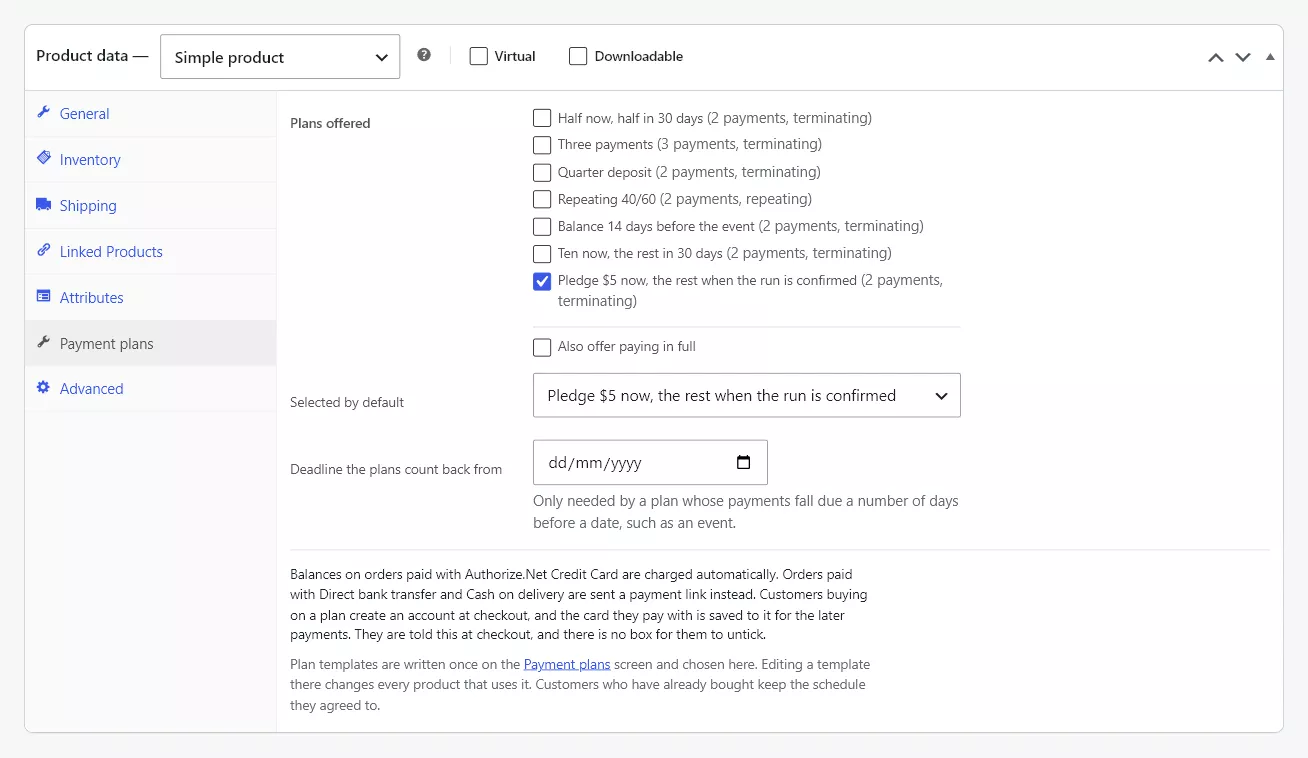
The fields
Plans offered. Every plan from WooCommerce > Payment plans, with the number of payments and the schedule beside each so you can choose without opening the builder. Tick none and the product is sold in full as normal.
Selected by default. Which option is pre-selected when the page loads. Choosing Pay in full is only allowed when Also offer paying in full is ticked.
Also offer paying in full. Adds a Pay in full option beside the plans. Leave it off to require a plan on this product. A product that does not offer paying in full is sold on its default plan whichever button adds it to the cart, including the button on a shop or category page, so it can never be bought at full price by a route that skipped the product page.
Deadline the plans count back from. The date any “before the product’s deadline” payment counts backwards from. A course on 14 June, a wedding on 3 August, a tour departing on 12 September. Leave it empty unless one of the plans on this product uses that due-date type.
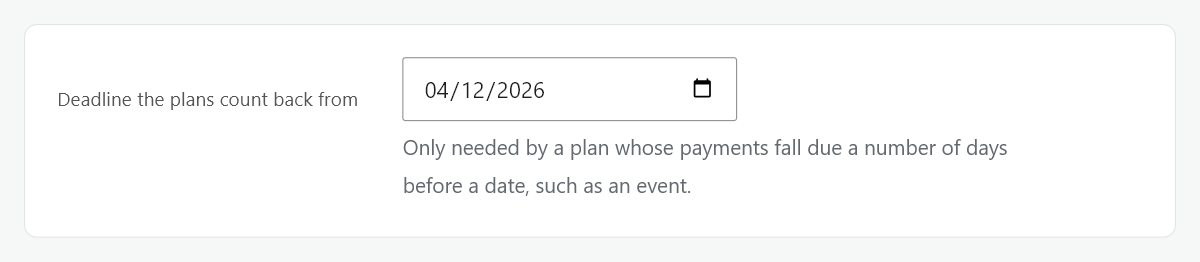
A plan that counts back from a deadline is not offered on a product that names no deadline. Tick one on a product with no date and the panel says so, naming the plan, so the product page never quietly carries one option fewer than you chose. Set the date, or use a plan with offsets from purchase instead.
How the balances will be collected
Under the fields, the panel names which of your payment methods can charge a saved card on a schedule, and which will send the customer a payment link instead. Read it before you put a plan on a product you expect to collect automatically.
The same note states what a plan checkout asks of the customer: they create an account, and the card they pay with is saved to it for the later payments. They are told this at checkout, and there is no box for them to untick. On a store where every payment method can charge on a schedule the note carries only that sentence, because there is nothing else to warn about.
On a variable product
The Payment plans tab on the parent sets what every variation offers. Each variation then has the same fields of its own, under the variation, with one extra control.
- Use the parent product’s plans. Ticked by default. The variation offers whatever the parent offers.
- Untick it and the variation carries its own plans, its own default and its own deadline. Use this when one date in a set of dates needs a different schedule, or when one variation should not be sold on a plan at all.
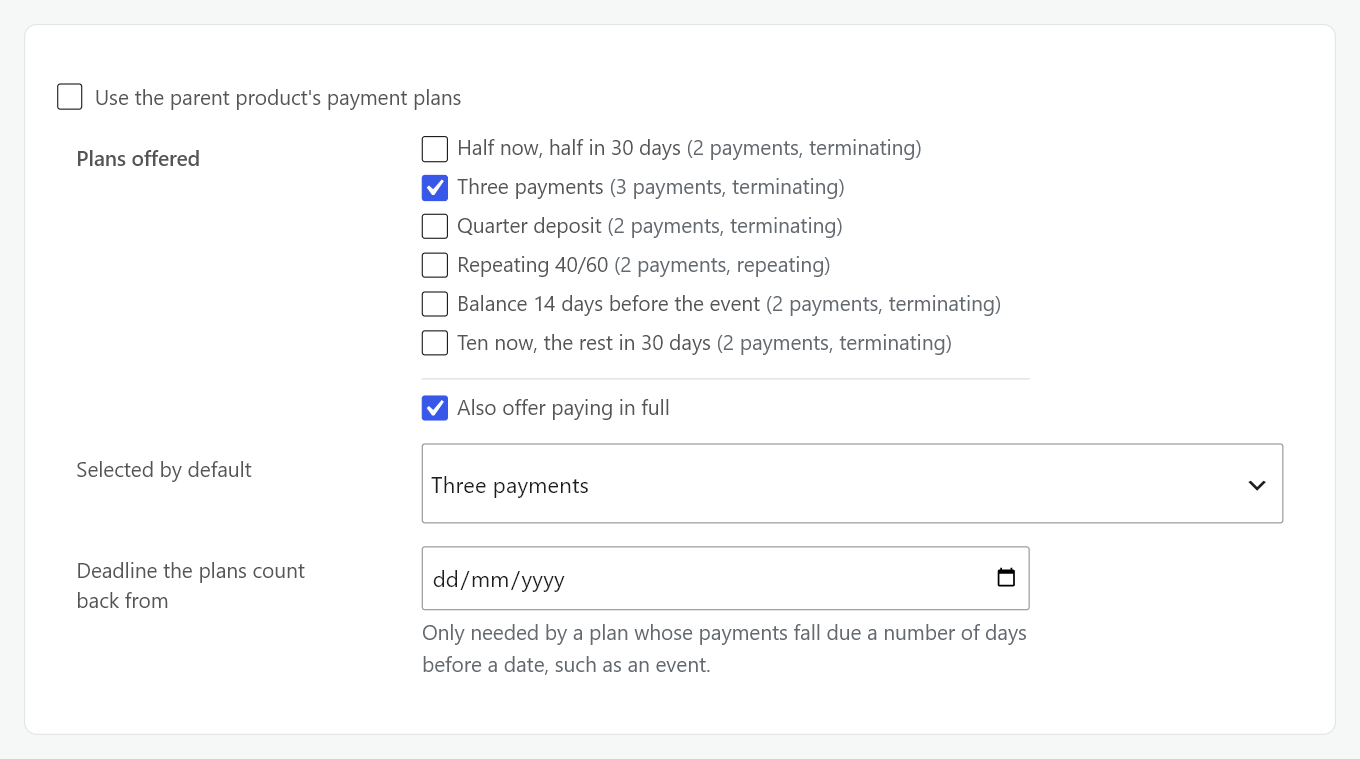
The product page updates as the customer chooses a variation, so the schedule shown is always the one that variation would actually be sold on.
When the tab refuses
On a grouped, external, bundle or composite product the tab reads “Payment plans are not offered on this product type” and gives the reason. Nothing is saved and nothing is offered on the storefront. On a subscription product the tab does not appear at all. See What It Does & What It Needs for why each type is refused.
Without an active licence the tab carries the licence notice instead of the fields. Plans already stored on the product are kept and are put back in front of customers as soon as the licence is active again.
Verification
- Open the product on the storefront.
- Confirm the plan options appear under the price with their schedules.
- On a variable product, change the variation and confirm the schedule changes with it.