
Deposits & Payment Plans for WooCommerce
The official deposits plugin cannot charge the balance at all: it emails the customer and hopes. This one takes the deposit, then charges the rest to the card they already used, on any gateway that supports WooCommerce Subscriptions.
Outstanding Balances & Batches
WooCommerce > Payment plans > Outstanding balances is one screen for every payment this plugin collects that is still owed across the store: who owes what, when, and on which product. From it you charge a reviewed set of balances in one action, or cancel a set of orders and refund everything collected on them. Either lands as a batch on the Batches tab, where you watch it finish.
What a row is
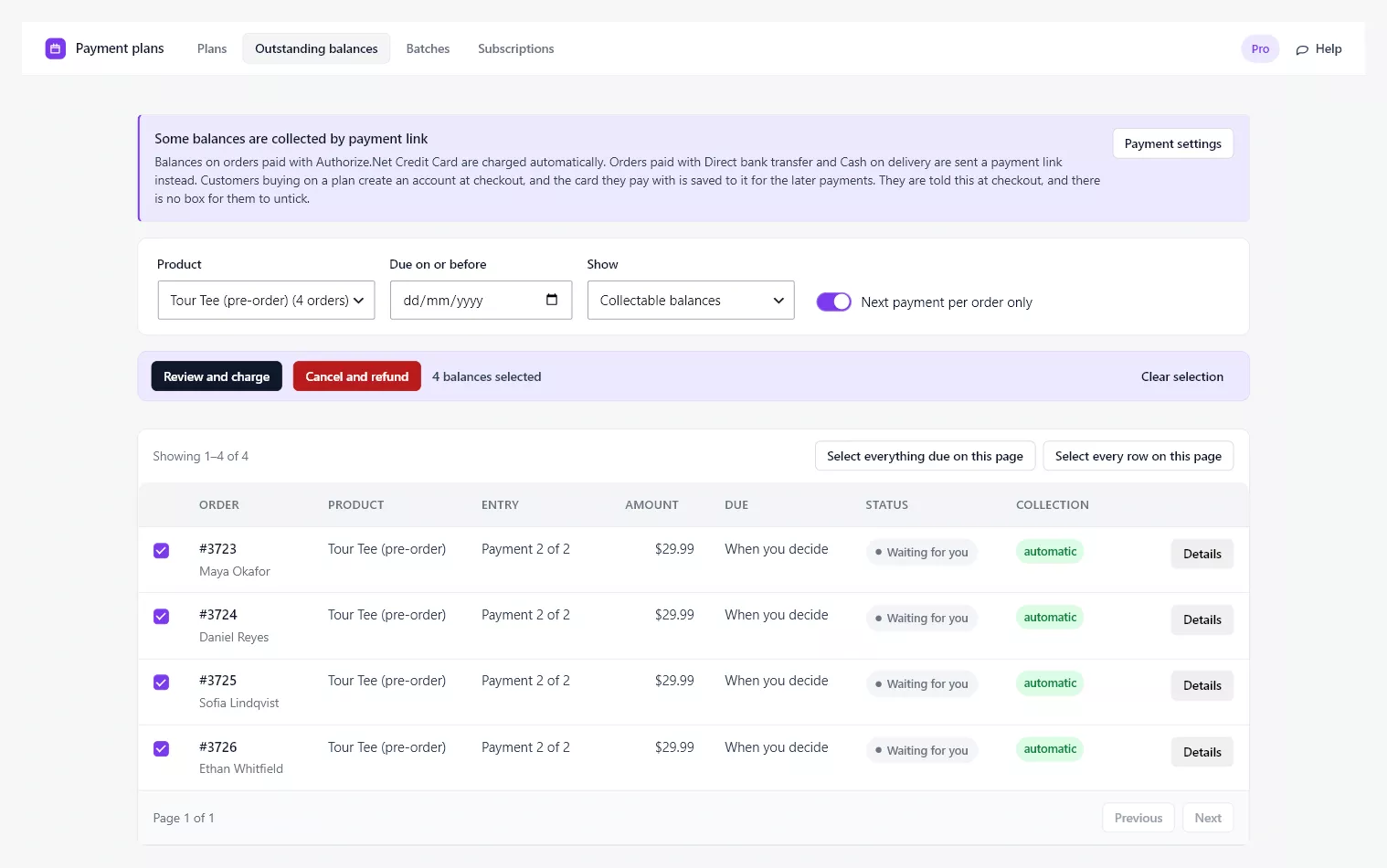
One payment on one order. The columns are the order, the customer, the product, which payment of the plan it is, its amount, its due date, its status, and how it will be collected.
Due reads the date, with a past due mark when it has passed, or When you decide for a payment that has no date.
Status is one of Scheduled, Waiting for you on a payment with no date because nothing is booked for it, Being collected, Failed, retry booked when the gateway refused it and a retry is booked, and Overdue, needs a decision when the retries are spent.
Collection is automatic when the order carries a saved card that can be charged, and payment link when it does not. Open a row to read why.
Filters
- Collectable balances shows what can be charged now. This is the default and the one to work from.
- Overdue, needing a decision narrows to payments past their date that have not been collected.
- Everything unsettled shows every payment not yet paid, including ones not due for months.
- All products narrows to one product, which is how you collect for one event, one course or one pre-order run at a time.
- Due on or before narrows to a date. A payment with no date is left out by this filter, because it has no date to compare. Clear the date to see it again.
- Next payment per order only is on by default and keeps one row per order, since only the next payment on a plan is ever collectable.
The list is paged and stays fast on a store with hundreds of open plans.
Selecting rows
Tick rows one at a time, or use the two buttons above the table. Select everything due on this page picks every balance that can be charged today: those past their date and those with no date. Select every row on this page picks every row whether it is due or not, which is what you want when the question is not “what is due” but “what happens to these orders”. A selection is cleared when you change a filter, so nothing you review comes from a list you are no longer looking at.
Once anything is selected, a bar appears with the two actions and the count: Review and charge and Cancel and refund.
Charging a set in one action
- Filter to what you want to collect, usually one product.
- Select the rows.
- Click Review and charge.
- Check the review panel: how many balances, their total, and anything left out with the reason.
- Confirm.
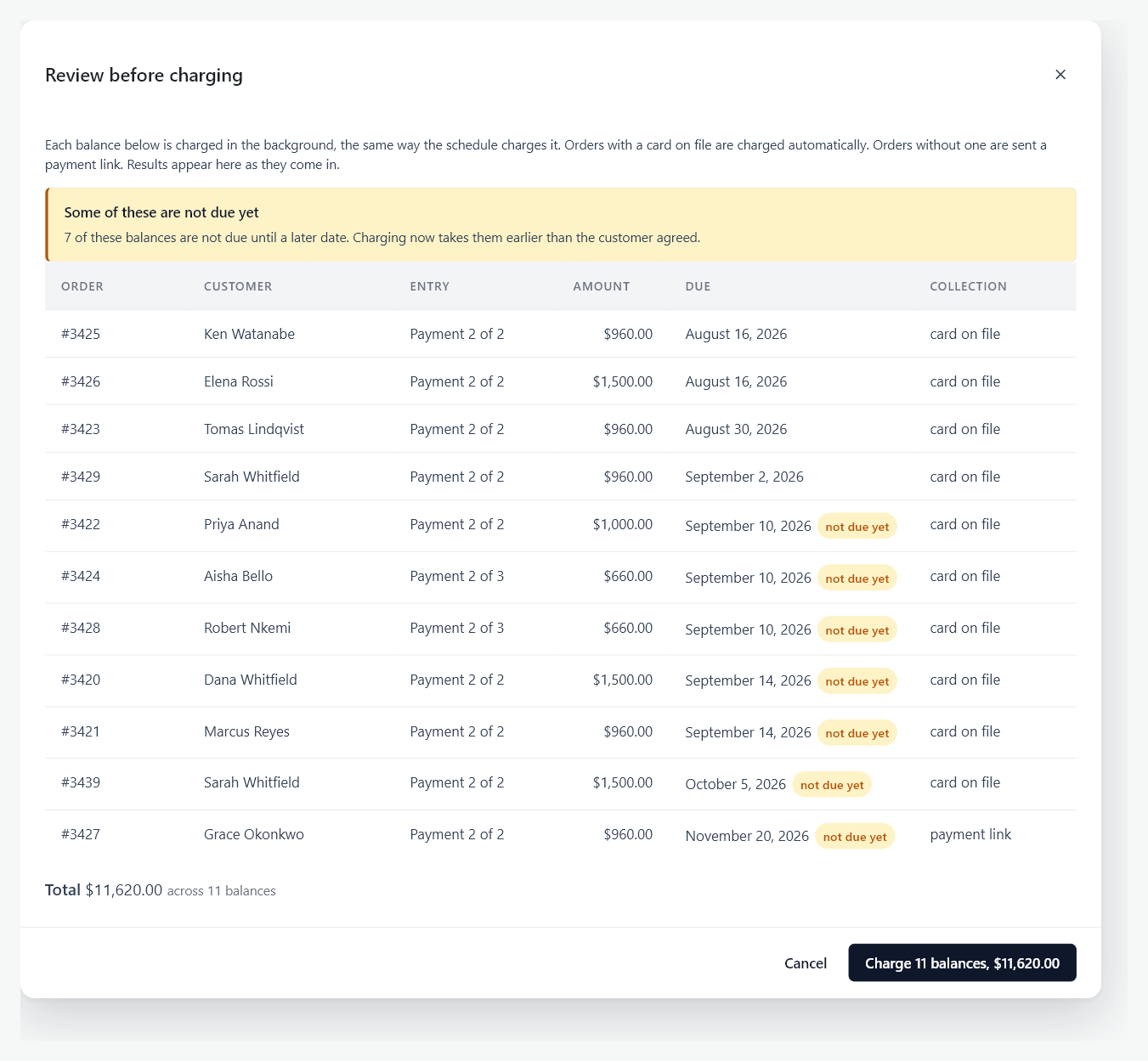
The review is the point of the screen. The total you confirm is the total that will be charged, and anything that cannot be charged now is named and excluded before you commit rather than failing afterwards. A balance whose date has not arrived is not excluded, because charging early is your decision to make; the panel counts them and says so above the list. A balance with no date is never “not due yet”. Collecting it is what the review is for.
Charging happens in the background. You can close the screen. The batch reports each payment’s real state rather than a guess: queued, charging, paid, failed, awaiting customer or skipped. A failure carries the gateway’s own reason. A payment that cannot be charged automatically becomes a payment link for that customer, which is the same fallback the scheduled run uses.

Cancelling a campaign and refunding everyone
A pre-order that does not reach its number, an event that is called off, a run that will not be printed: the deposits have to go back and the remaining payments have to stop, on every order at once. That is Cancel and refund.
- Filter to the product.
- Click Select every row on this page.
- Click Cancel and refund.
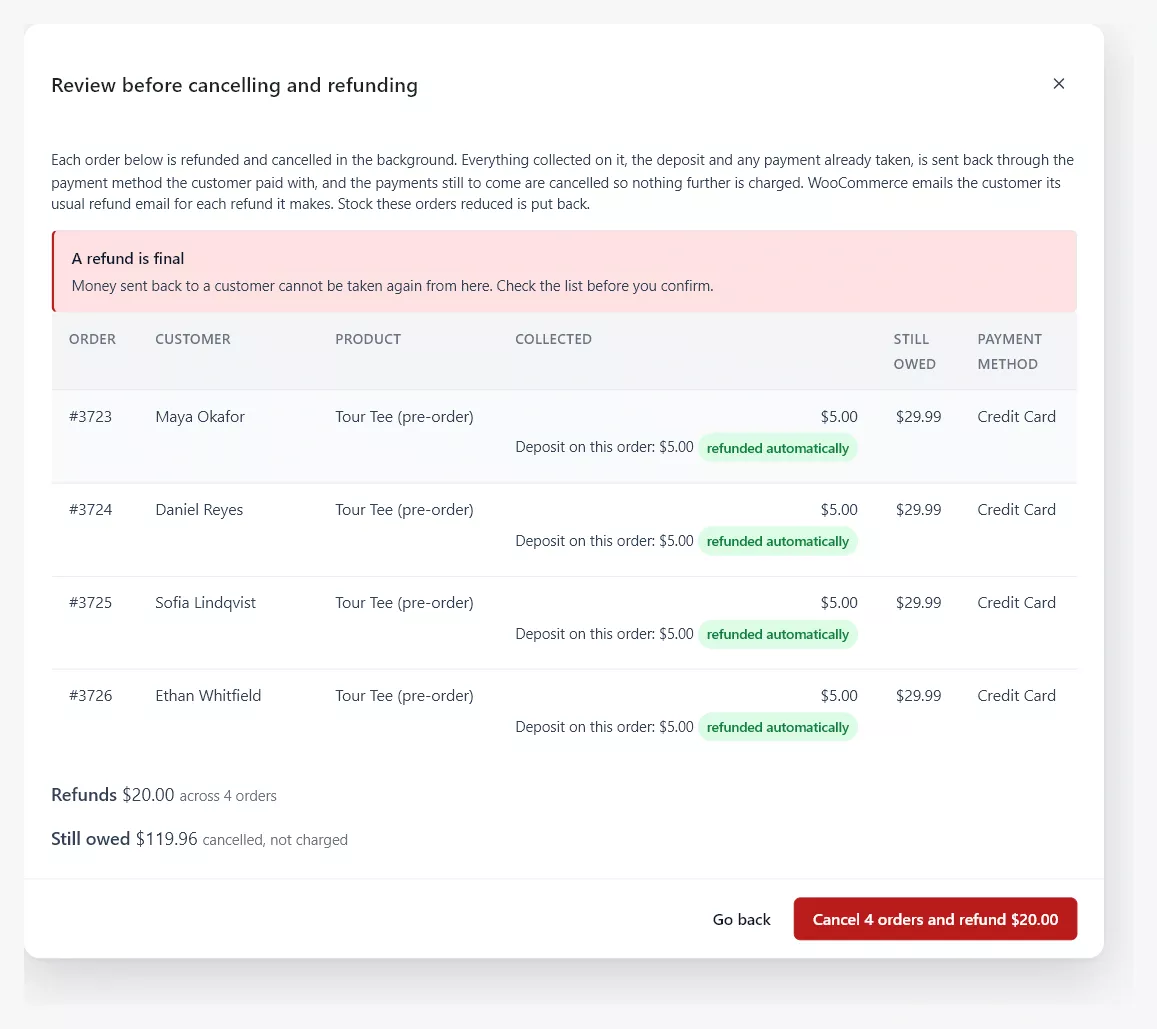
- Read the review panel. It lists each order once, however many rows it had, with everything collected on it, what is still owed, and the payment method.
- Confirm once.
What the review tells you, order by order:
- Collected. The deposit on the order, and every payment already taken on its own payment order, each as a separate refund through the transaction it was charged on. Each part is marked refunded automatically when its payment method can make the refund itself.
- Still owed. What would have been collected and now will not be. It is cancelled, not charged.
- Left out. Orders that cannot be cancelled and refunded from here, each with its reason: the order is in the trash, it belongs to a subscription, its plan was already cancelled, it is already in a cancel and refund batch that has not finished, or money on it was paid with a method that cannot make refunds on its own, such as bank transfer or cash on delivery. Those you refund from the order screen and cancel there.
- Nothing collected yet. An order with a zero deposit that has paid nothing is listed too. It is cancelled without a refund, and the panel says how many are in that position.
The confirm button names what it will do: “Cancel 3 orders and refund $15.00”. Money sent back cannot be taken again from here, which is what the red banner says, so read the list before you press it.
What happens to each order
Each order is handled in the background, one at a time, and each step is written to the order’s notes.
- Every payment order that was paid is refunded first, then the deposit on the order itself, all through WooCommerce’s own refund, through the payment method the customer paid with. WooCommerce sends the customer its usual refund email for each refund it makes.
- The remaining payments are cancelled, so nothing further is charged and the order leaves Outstanding balances.
- Stock the order reduced is put back.
- The order ends Refunded when money went back, or Cancelled when nothing had been collected. Some payment methods void an unsettled charge rather than refund it and move the order to Cancelled themselves; the note says which happened.
- A closing note records the total sent back, what it was made of, the final status, and who confirmed it.
Coupon usage is released when an order ends Cancelled. An order that ends Refunded keeps its usage counted, which is WooCommerce’s own rule for refunded orders.
When a refund is refused
If the payment method refuses a refund, that order stops. Nothing on it is cancelled and its remaining payments stay scheduled, so a refusal never leaves a customer owing money on an order you thought was closed. The batch marks the order Refund it yourself with the payment method’s own words, and the order carries a note saying the same and what to do. Refund it from the order screen and cancel it there, or fix the cause and run Cancel and refund on it again. Parts already refunded before the refusal are not refunded twice. See Troubleshooting.
If a payment on the order is being charged at the very moment the refund is attempted, the batch waits a minute and tries again, up to twenty times, rather than refunding an order whose figures are moving.
Batches
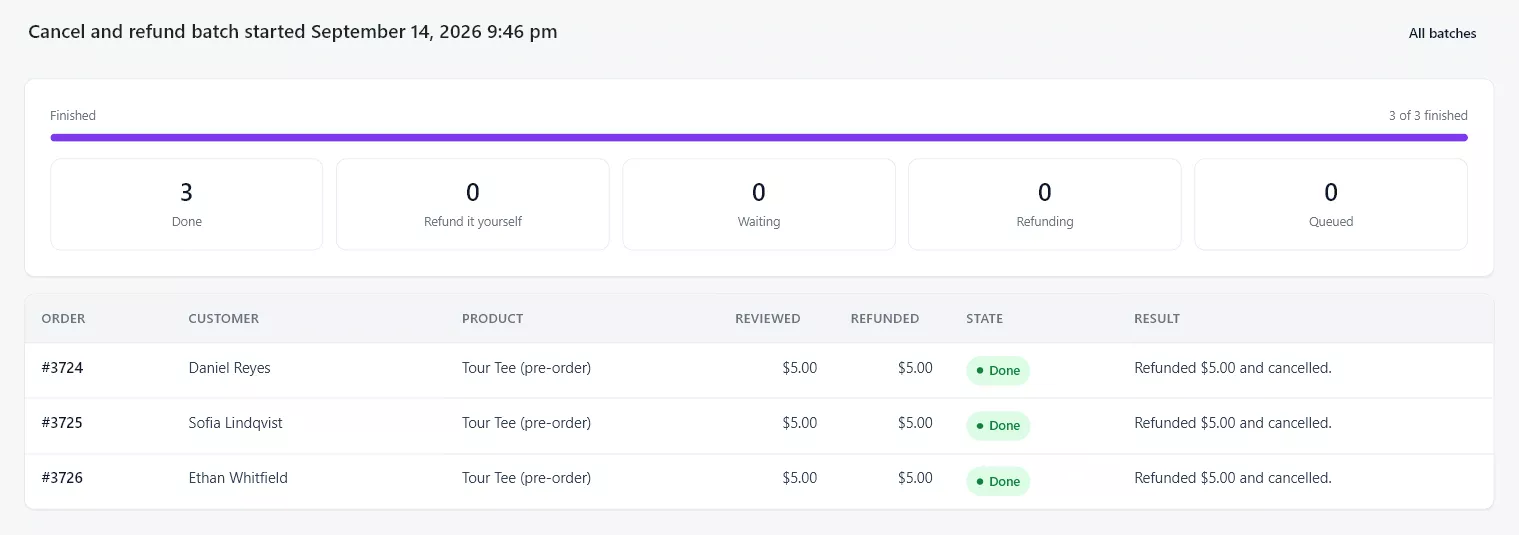
WooCommerce > Payment plans > Batches lists the last twenty batches of each kind, charge and cancel and refund, with when each started, who started it, how many balances or orders it holds, its total and its outcome. Outcomes are read from the orders each time, so the list is never stale. Open a batch to watch it run; the page updates on its own.
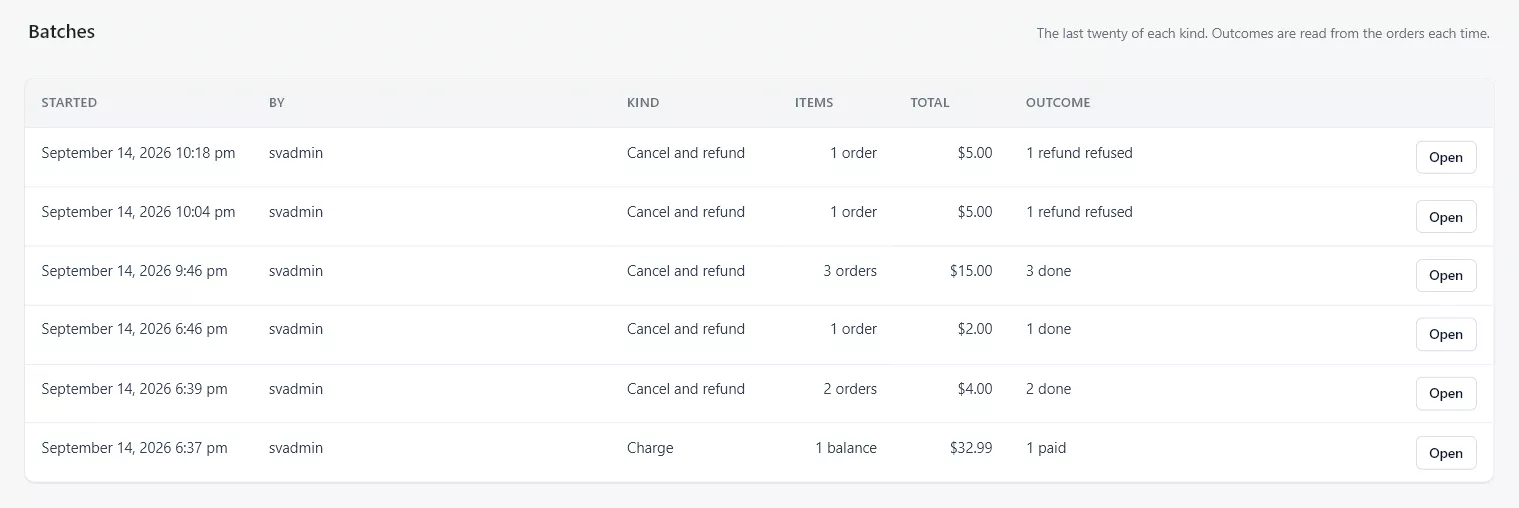
A batch whose background task never ran, for example because the plugin was deactivated while it was queued, reports its orders as Not finished. Nothing on those orders was changed. Select them again and run the action again.
Scheduled collection
You do not have to use this screen to collect dated payments at all. They are collected on their due dates on their own. The screen is for collecting early, collecting a group together, dealing with something that failed, and collecting every payment that has no date, which the schedule never touches.
Scheduled collection depends on WordPress being able to run its scheduled tasks. On a quiet store nothing runs unattended, because WordPress only runs its schedule when a page is loaded. Add a real system cron entry on any store where that matters:
* * * * * cd /path/to/your/site && wp cron event run --due-now --quietAsk your host if you are not sure. Most managed WooCommerce hosts do this already.
This has nothing to do with WooCommerce Subscriptions. The schedule runs on Action Scheduler, which is part of WooCommerce itself, and so do the batches. If anything it matters more on a store without Subscriptions: the schedule is what raises each payment when it falls due, and a payment that has not been raised is one the customer has no way to pay. Set the cron entry whether you collect automatically or by payment link.
When a payment fails
A declined payment is retried a bounded number of times, a day apart. When the retries are spent the order is marked Payment overdue and you are told. Nothing is ever cancelled silently, and the customer’s remaining payments are not abandoned.
Subscriptions on a plan
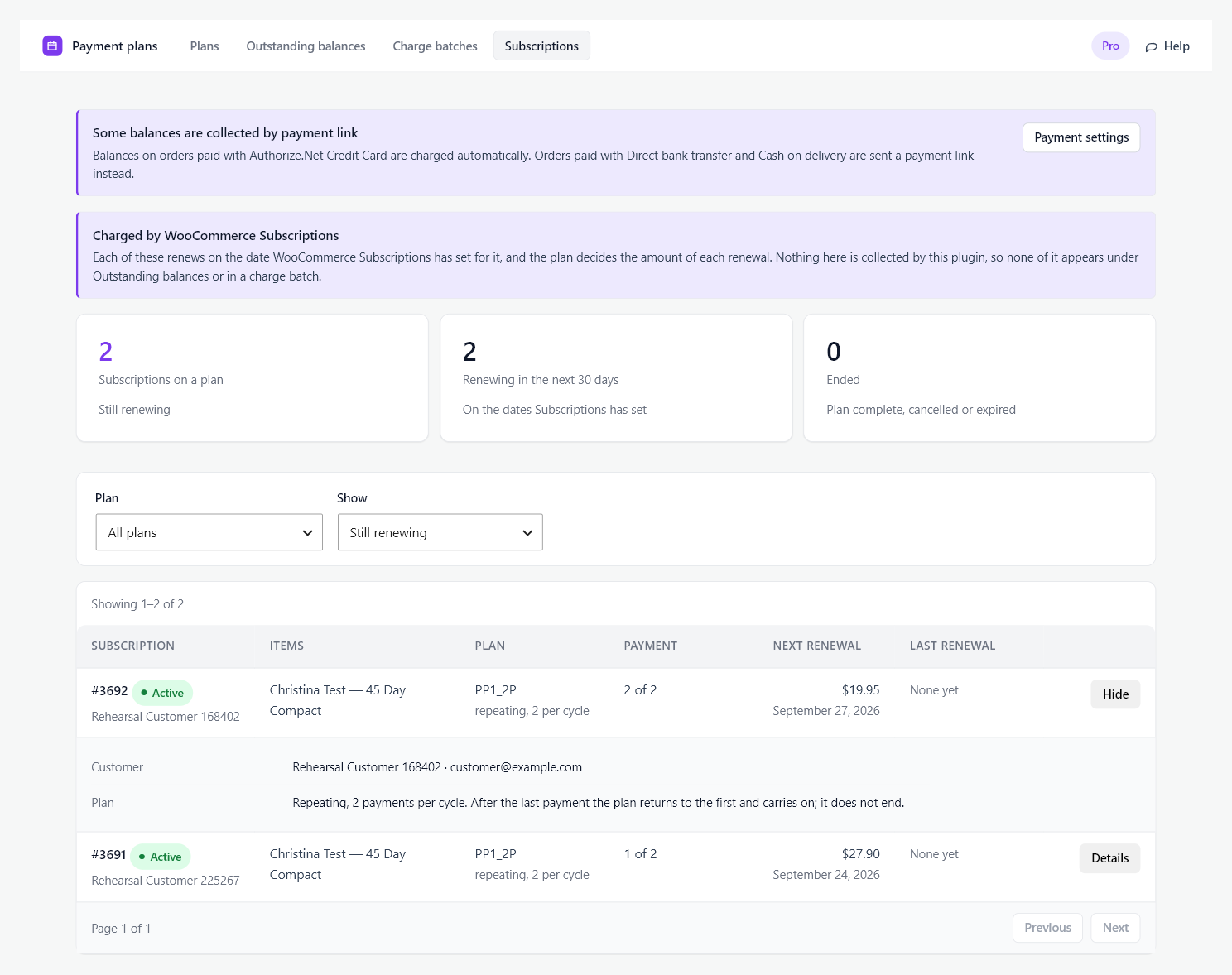
A plan can also live on a WooCommerce Subscriptions subscription, usually one brought in by an import. WooCommerce Subscriptions charges that plan on its own renewal dates, and the plan sets the amount of each renewal. Nothing on such a subscription is collected by this plugin, so it never appears under Outstanding balances or in a batch of either kind. Two schedulers on the same money would charge it twice, and cancelling a subscription is done in WooCommerce Subscriptions.
When any subscription carries a plan, a fourth tab appears: WooCommerce > Payment plans > Subscriptions. It lists every such subscription with its plan, where it is in that plan, the amount and date of the next renewal, and what the last renewal did. Three counts sit above the list: subscriptions still renewing, those renewing within the next 30 days, and those that have ended. Each count opens the list behind it. The tab is read-only. To change a plan, open the subscription.
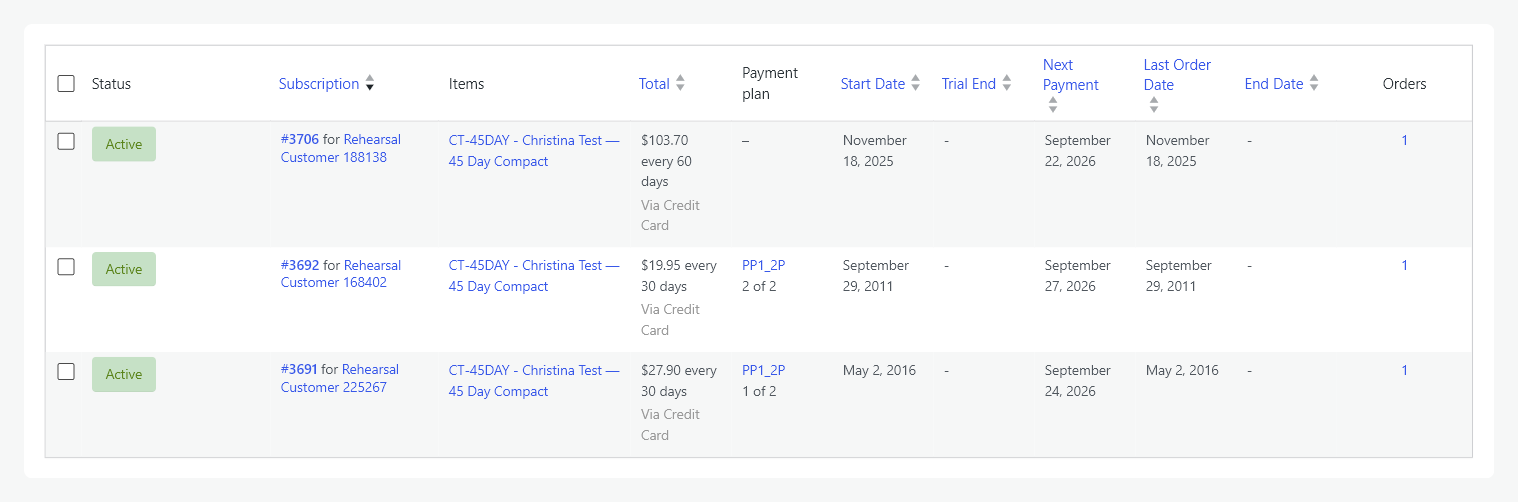
The same information is on the subscriptions list. WooCommerce > Subscriptions gains a Payment plan column naming the plan and position on each subscription that carries one, linking to the tab.
Open a subscription’s last renewal from the tab to see what a paid renewal did. A renewal that was paid but did not move the plan on is the one to look at, because the next renewal will take the same payment again.