
Address Autocomplete for WooCommerce
Every extra field a customer fills by hand is a chance to abandon checkout. Cut address entry down to one click.
Configure Address Autocomplete Settings
Use the Address Autocomplete settings to control how suggestions are loaded and how address parts are placed into WooCommerce fields.
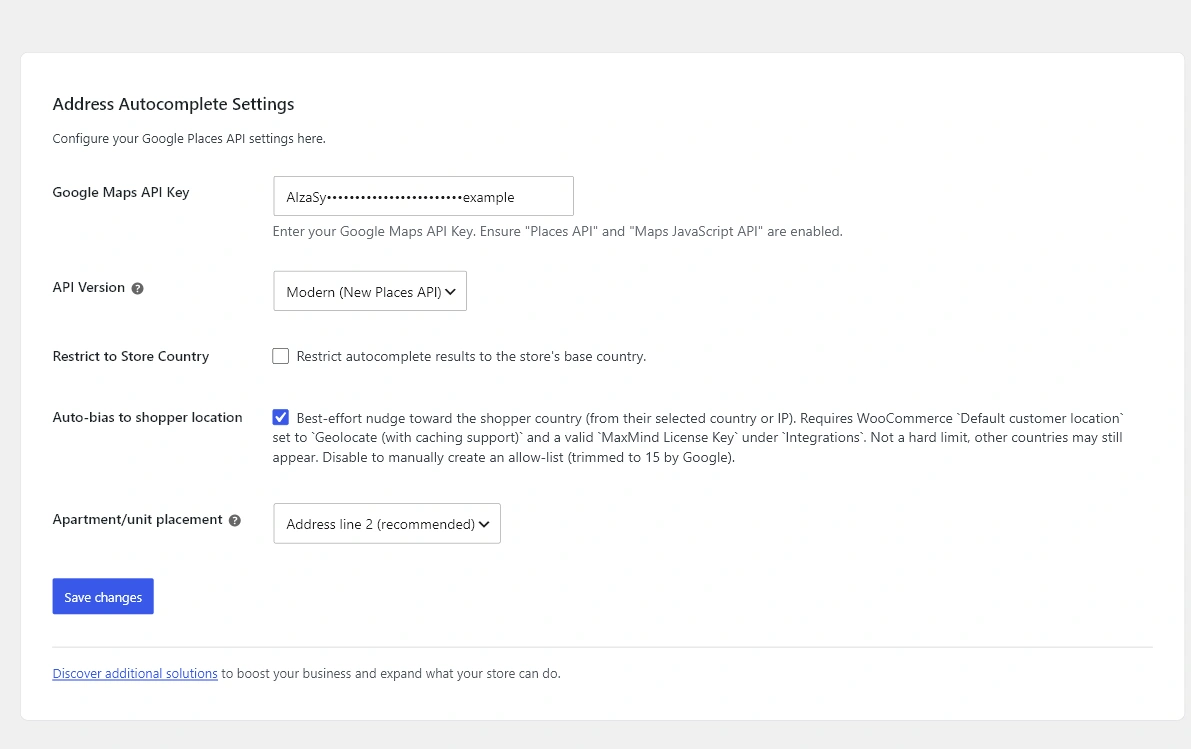
Google Maps API Key
- Purpose: Authenticates calls to Google Maps JavaScript API and Places.
- Options: Any active Google Cloud API key with the required APIs enabled.
- Recommended: Restrict the key to your store’s domain and the specific APIs in use. See Google Maps and Places API Setup.
API Version
- Purpose: Selects which Google Places API the plugin calls.
- Options: Modern (New Places API) or Classic (Places API).
- Recommended: Modern for new installs. Switch only after confirming current Google pricing and migration status for your project.
Restrict to Store Country
- Purpose: Limits Google suggestions to the country set in WooCommerce general settings.
- Options: On or Off.
- Recommended: On for single-country stores. Off if you also configure Allowed Countries with a multi-country list.
Auto-bias to shopper location
- Purpose: Nudges suggestions toward the shopper’s approximate location using WooCommerce geolocation.
- Options: On or Off.
- Recommended: On when WooCommerce geolocation with MaxMind is configured. Off if geolocation is disabled, otherwise bias will not work as expected.
Allowed Countries
- Purpose: Restrict suggestions to a custom list of countries.
- Options: Up to 15 ISO country codes. Leave empty for no restriction.
- Recommended: Set explicitly when shipping to specific regions. Combine with Restrict to Store Country turned Off when supporting more than one country.
Apartment/unit placement
- Purpose: Controls where unit, suite, or apartment numbers are placed when a customer selects a suggestion.
- Options: Address line 2, or inline with the street number on address line 1.
- Recommended: Address line 2 for most stores because shipping providers expect the unit on a separate line. Inline only when your fulfillment workflow needs both house number and unit on a single line.
Related
Next: Classic Checkout and Checkout Blocks Behavior. Troubleshooting: Troubleshooting Autocomplete Results.