
Product Builder for WooCommerce
Visual product configurator with tile selection, conditional logic, file uploads, and smart formula pricing. The modern WooCommerce product addons alternative.
Product Builder Pricing and Bulk Discounts
Product Builder pricing controls how customer selections change the final product price and how larger configured orders qualify for bulk discounts.
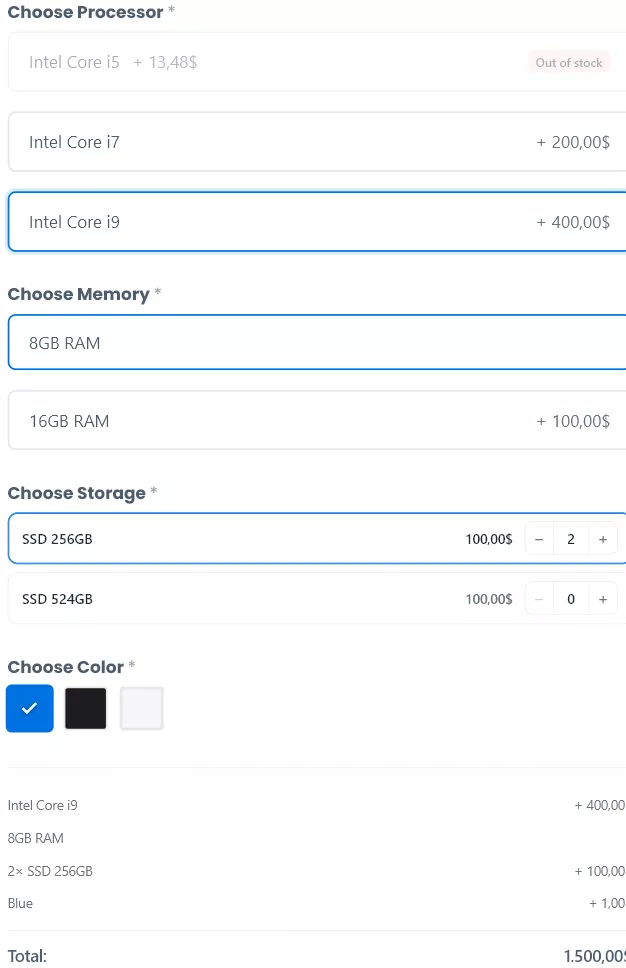
Price display mode
- Purpose: Controls how an option’s price contribution is shown next to the option label.
- Options: Differential or Absolute.
- Recommended: Differential when most options are small add-ons. Absolute when the configured product feels like a different SKU at each step (e.g. selecting a size that fully replaces the base price).
- Example: A $100 base product with a +$10 option renders as
+$10in Differential mode and as$110in Absolute mode.
Option pricing types
Each option’s pricing has a type and a value.
- None: the option does not change the price.
- Fixed: adds a fixed monetary amount (can be negative).
- Percentage: adds a percentage of the base product price.
- Formula: evaluates a token-based formula. Use for inputs whose price depends on other selections.
- Linked product: uses the price of a linked WooCommerce product (also drives stock checks — see Linked Products and Stock).
Formula syntax
- Placeholders:
{base}= product price,{qty}= cart quantity,{option:group_id}= numeric value of another group’s selection. - Operators:
+,-,*,/, parentheses. - Example:
{base} * 0.1 + 25adds 10% of the base price plus $25 flat.
The parser is token-based (no eval()) and ignores unknown tokens for safety.
Option modifiers
- Purpose: Apply a secondary adjustment to an option’s calculated price. Most useful with Linked product pricing.
- Options: None, Fixed or Percentage.
- Example: A linked-product option priced at $40 with a 10% modifier resolves to $44. Use modifiers when the same linked product needs slightly different pricing in different builds.
Bulk discounts
- Enable bulk discount: turns tier-based discounts on.
- Count mode:
- Options: count the number of selected options across the build.
- Quantity: count the quantity values entered in quantity fields.
- Tiers: a list of
min_qty+discount_percentpairs. The highest tier whosemin_qtyis reached wins. - Upsell nudge: when the cart is below the next tier, the breakdown shows how many more items unlock the next discount.
Example tier list:
min_qty=5,  discount_percent=5
min_qty=10, discount_percent=10
min_qty=25, discount_percent=15
With this configuration and Count mode set to Options, a cart with 12 selected options gets a 10% discount because 12 is at or above the 10-item tier but below the 25-item tier.
Testing checklist
- A configured product with one of each pricing type (Fixed, Percentage, Formula, Linked).
- A second configured product with an Option modifier applied.
- A cart that crosses each bulk discount tier boundary, including the highest tier.
- A cart quantity change to confirm Count mode counts the right thing.
Related
See Field Types for the fields that can carry a price, and Conditional Logic and Required Selections for hiding price-affecting options behind earlier choices.