
Product Builder for WooCommerce
Visual product configurator with tile selection, conditional logic, file uploads, and smart formula pricing. The modern WooCommerce product addons alternative.
Product Builder Option Groups and Templates
Option groups organize the choices a customer makes while configuring a product. Each group has a name, a display type (the field), an optional source of options, and the options themselves.
Add a group
Click + Add Group in the Option Groups panel. The Edit Option Group modal opens with every setting in one place.
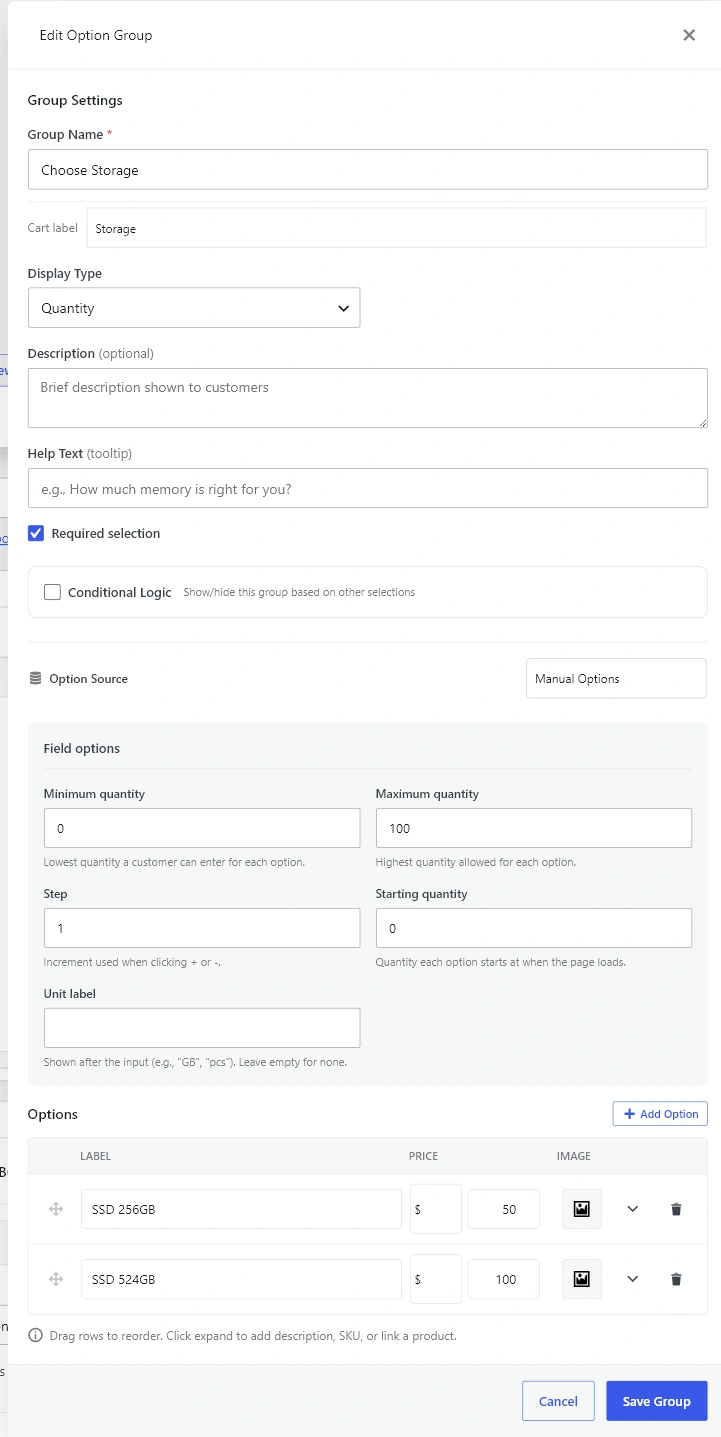
Group Settings
- Group Name — heading shown above the group on the product page.
- Cart label — short label shown in cart, checkout and order line items. Defaults to the Group Name when empty.
- Display Type — the field type for this group. See Field Types.
- Columns — tile/grid column count. Hidden for field types that render inline (Quantity, Color, Text, File).
- Description — optional helper text shown below the group name.
- Help Text — appears as a tooltip on hover, useful for explaining a tricky choice.
- Required selection — customer must pick a value before adding to cart.
Conditional Logic
Toggle Conditional Logic to show or hide this whole group based on choices made in other groups. See Conditional Logic and Required Selections.
Option Source
- Manual Options — the default. Type each option in the Options table below.
- From Category / Tag / Attribute — pull options from WooCommerce. Use Limit, Order by and Order to control which products appear. Manual options listed in the table still appear first.
Dynamic sources are cached. Click the refresh icon next to the source controls if the underlying category or tag changed.
Field options
This section adapts to the Display Type. For example, Quantity shows Minimum, Maximum, Step, Starting quantity and Unit label. Choice (tiles) shows Show descriptions, Show images and Tile size. See Field Types for the full per-type list.
Options table
- Label — what the customer sees.
- Price — pricing type (fixed amount, percentage, formula, linked product) and value. See Pricing.
- Image — per-option thumbnail. Field types that don’t use images hide this column.
- Default — pre-selected when the page loads. Hidden for field types that don’t use a single default (Quantity, File, Text).
- Expand — opens additional fields: description, SKU suffix, link to a WooCommerce product (for stock and price sync), and per-option conditional rules.
Drag the row handles to reorder options. The order is preserved on the frontend and in cart/order line items.
Templates
Once a builder is configured, click Save Template in the Option Groups panel header to reuse the full structure on other products. Open another product, choose the template from Load Template, then adjust product-specific labels and prices.